
Move from Google Slides to Dock, slide by slide
This is for you if your decks are in Google Slides and now have to keep living as PowerPoint files: a client edits them in PowerPoint or Keynote, or you want an agent to keep working on them. In Dock the deck is the .pptx itself. You edit that file, and you download that file, or export it to Keynote, PDF, or back to Google Slides. Agents such as Claude Code and Codex can read and edit it through Dock’s MCP server, on every plan.
For what Google Slides keeps and drops when it converts a PowerPoint file, see the PPTX export test. This post is the how-to: we moved a deck on November 20, 2026 and checked it slide by slide.
The test deck
The test deck from our PPTX export test: six slides, with English and Traditional Chinese text: a title slide with a link, a bar chart, a table, a diagram of circles and arrows with an entrance animation, a cropped photo and a hidden appendix, with a fade on slide 1 and a push on slide 4. It started as a PowerPoint file; we converted it into Google Slides, so it is a Google Slides file like any other in Drive.
1. Download the PowerPoint file from Google Slides
In Google Slides, open the deck and choose File → Download → Microsoft PowerPoint (.pptx). The hidden slide came along, still hidden. Google Slides had shown no warning when it converted our file from PowerPoint, though the chart had become a picture (step 4).
If the deck shows a .PPTX badge next to its name, it is a PowerPoint file open in Office compatibility mode, not a Google Slides file. Upload that file itself to Dock: there is nothing to convert.
2. Upload it to Dock
Sign up free, then upload the .pptx to Dock. An agent can do the same with the Dock command line:
$ dock slides create "Q3 review" --from-file ./google-slides-export.pptx
Dock can also take the deck straight from Google Drive. In a Dock presentation, open the File menu, choose Open… and pick the Google Drive tab. Connect your Drive, choose the deck in Google’s file picker, and Dock copies it into My files; a Google Slides file is converted to .pptx on the way. Dock sees only the files you pick. We moved our deck the download way and did not test the Drive tab.
3. Check every slide against Google Slides
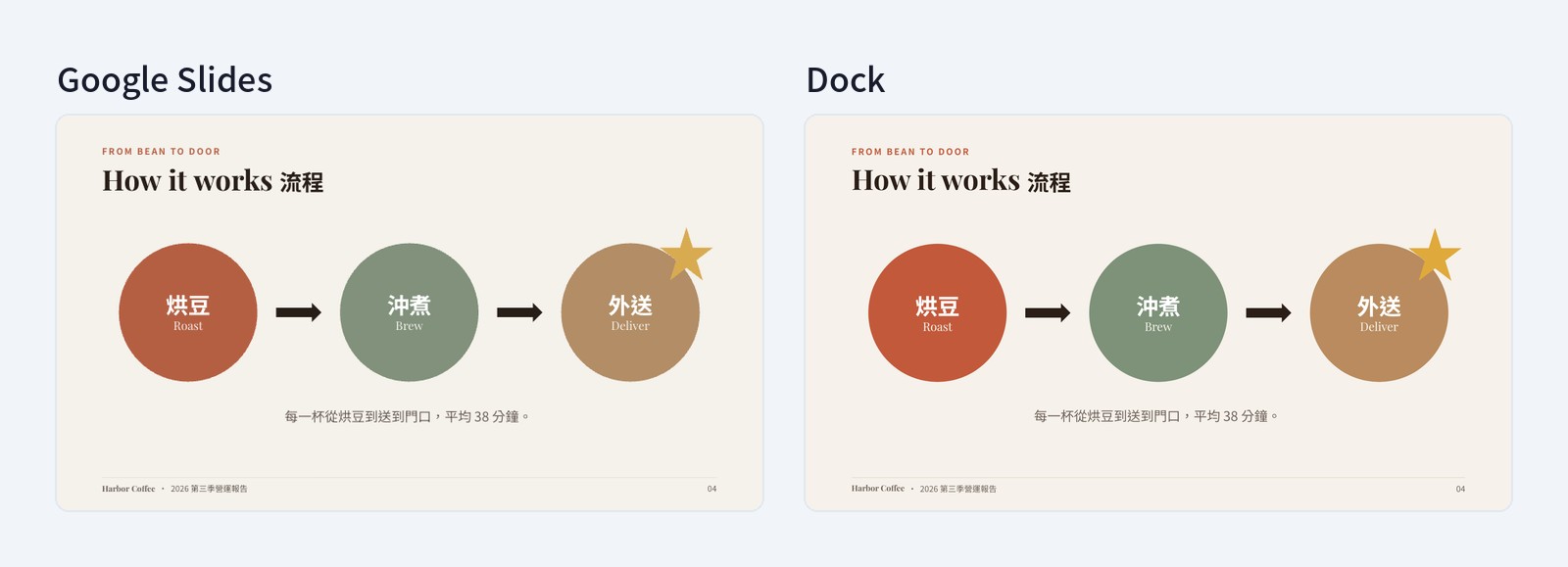
Each picture shows the Google Slides editor on the left and, on the right, the file uploaded to Dock, drawn by Dock’s renderer (OfficeKnife 1.318.0), both on November 20.

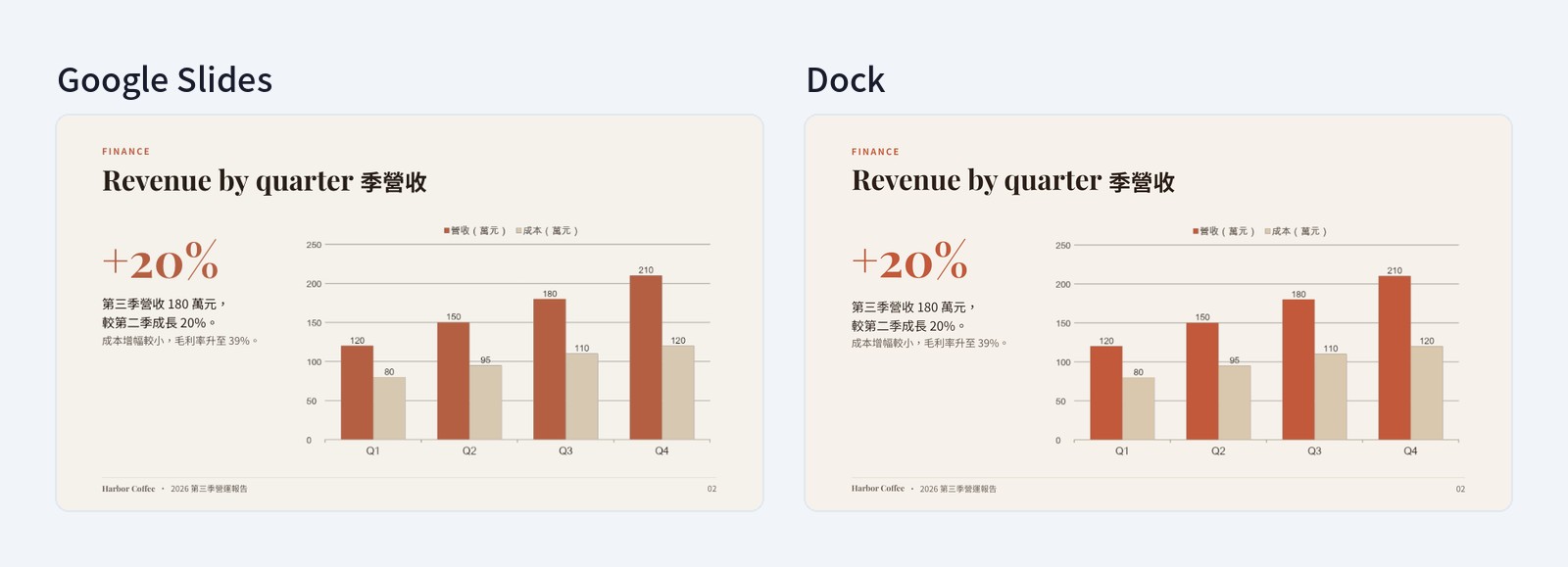
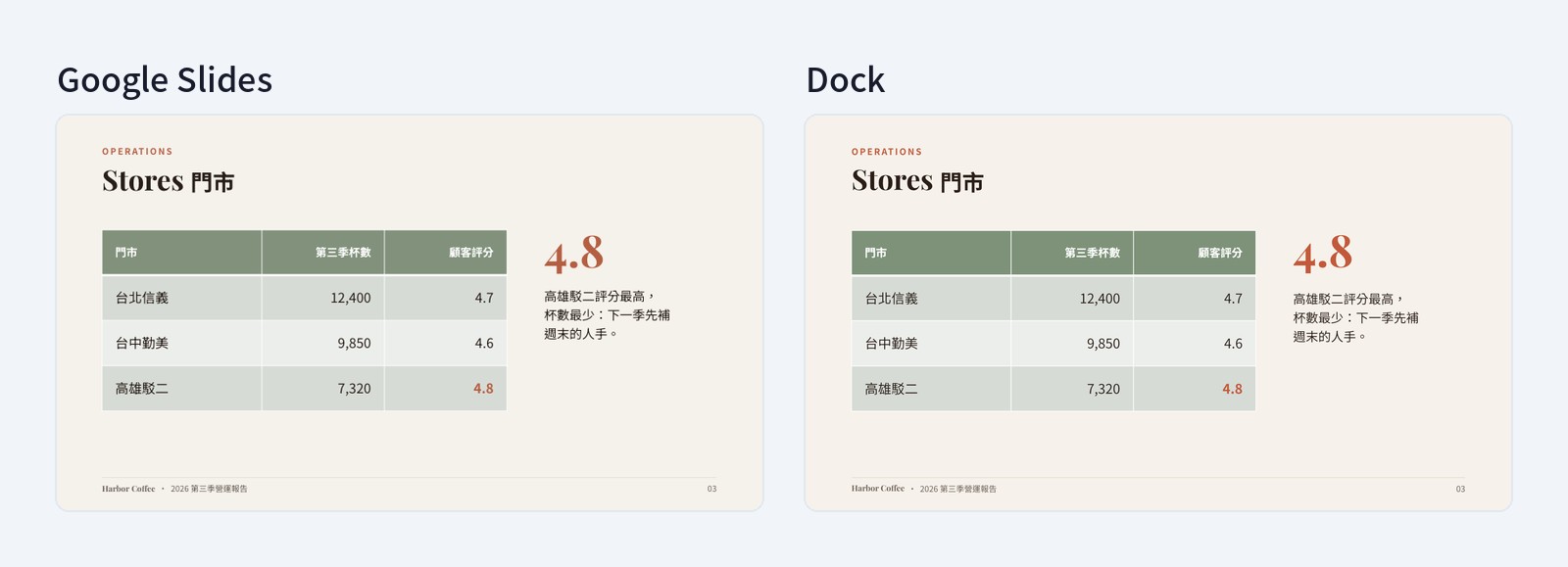


Speaker notes came through on every slide.
4. Rebuild the chart
Google Slides turns a chart from a PowerPoint file into a picture when it converts the file (Work with Office files), so in Dock it is a picture too, 600 × 355 pixels. Ask an agent connected to Dock’s MCP server to rebuild it with the numbers:
› Use the dock MCP tools. In the presentation …, slide 2 has a bar chart that is only a picture. Replace it with a real, editable clustered column chart in the same place and size. Categories Q1, Q2, Q3, Q4. Two series: Revenue 120, 150, 180, 210 and Cost 80, 95, 110, 120. Keep the legend. Then render slide 2 to check it.
Move from Canva to Dock shows this rebuild step by step on a Canva deck, with the command to set the labels’ size. If the chart in Google Slides is linked to a Google Sheet, take the numbers from the sheet.
5. Check the fonts
The deck’s Chinese text names Noto Sans TC. After Google Slides it still did, and Google put Noto Sans TC in the file, so in Dock there was nothing to switch. Click a Chinese text box in Dock and look at the font: if it shows Calibri or another font with no Chinese characters, switch it with Replace Fonts, which changes one font to another in the text of every slide, layout and master, in one step.
- On the Home tab, in Editing, open Replace ▾ and choose Replace Fonts….
- In Replace:, pick the font Google Slides named. In With:, pick Noto Sans TC, one of the fonts Dock comes with, which has Chinese characters.
- Click Replace. It is one step, and one undo takes it back.
Replace Fonts changes the font everywhere in the deck. If the font it replaces is also the Latin font of your titles, such as Playfair Display, the titles’ Latin letters change to Noto Sans TC too, so run it on such a font only if you want that.
Our first, plainer test deck needed this when we moved it on November 19. It named Noto Sans TC only as the font for Chinese characters: after Google Slides its Chinese text named Calibri. We ran the same ReplaceFonts operation from Dock’s command line on that deck, and every run that named Calibri then named Noto Sans TC.
Frequently asked questions
Can Dock open a Google Slides deck directly?
Dock's Open… dialog has a Google Drive tab for that: connect Drive, pick the file, and Dock imports a Google Slides file as a PPTX. We did not test that tab for this post. Google still does the conversion, so a chart that came from PowerPoint is a picture either way.
Do I need to convert a PowerPoint file in Google Drive before moving it?
No. If the deck in Drive is still a .pptx (it opens with a .PPTX badge, in Office compatibility mode), download it and upload that file to Dock. Only a Google Slides file needs File → Download → Microsoft PowerPoint first.
Will my Google Slides charts stay editable in Dock?
A chart that came from a PowerPoint file is already a picture in Google Slides, and in our test it stayed a picture. Rebuild it in Dock, or ask an agent connected to Dock to rebuild it with the numbers, as in step 4.
Did transitions, animations and hidden slides survive the move?
Yes, in our test on 2026-11-20. The fade, the push, the entrance animation and the hidden slide were all in the file Google Slides downloaded, and Dock kept them.
Do I need a paid Dock plan to move a deck?
No. The Free plan uploads and edits a PPTX and connects your own agent. Downloading it counts as one export, and Free has 3 exports a month; the same version in the same format again within 24 hours does not count again.
Related
- PPTX export test: Dock, Canva, Gamma, Google Slides
- Move from Canva to Dock: a deck, slide by slide
- Connect Claude Code to Dock
The move was measured on Dock staging on November 20, 2026, with a PowerPoint download made in Google Slides the same day. Both products may change with updates.