
Turn a PPT or Keynote file into a share link
Sign up, upload your presentation and get a link to share. People with the public link can view it without signing in.
Put your presentation in Dock Upload a PPTX, PPTM or Keynote file. Open the file in Dock


Sign up before you share; viewers don't need an account. Link passwords are on paid plans.
One link, no sign-in
People open the link in a browser and see the presentation. No sign-in, no software to install.
Viewers just open the link
No sign-in and no software to install. A presentation's public page is view-only.
Your notes stay yours
Speaker notes stay out of the public link. The file sent to a visitor's browser doesn't include them.
Set how long the link works
Choose 30, 60, 90 or 365 days, or no expiry. Paid plans can also add a link password.
What viewers see when they open the link
Previous and next buttons on the page, and a Present button for full screen.
- A presentation's link is view-only and can expire after 30, 60, 90 or 365 days
- Speaker notes don't appear on the public page
- Set a password: paid plans
A real example: one deck, opened by someone with no account
We uploaded a 12-slide sample deck, turned on its public link, and opened the link in a new browser that had never signed in. The sample deck is below to download. The link was a test link, so what the visitor sees is shown as screenshots.
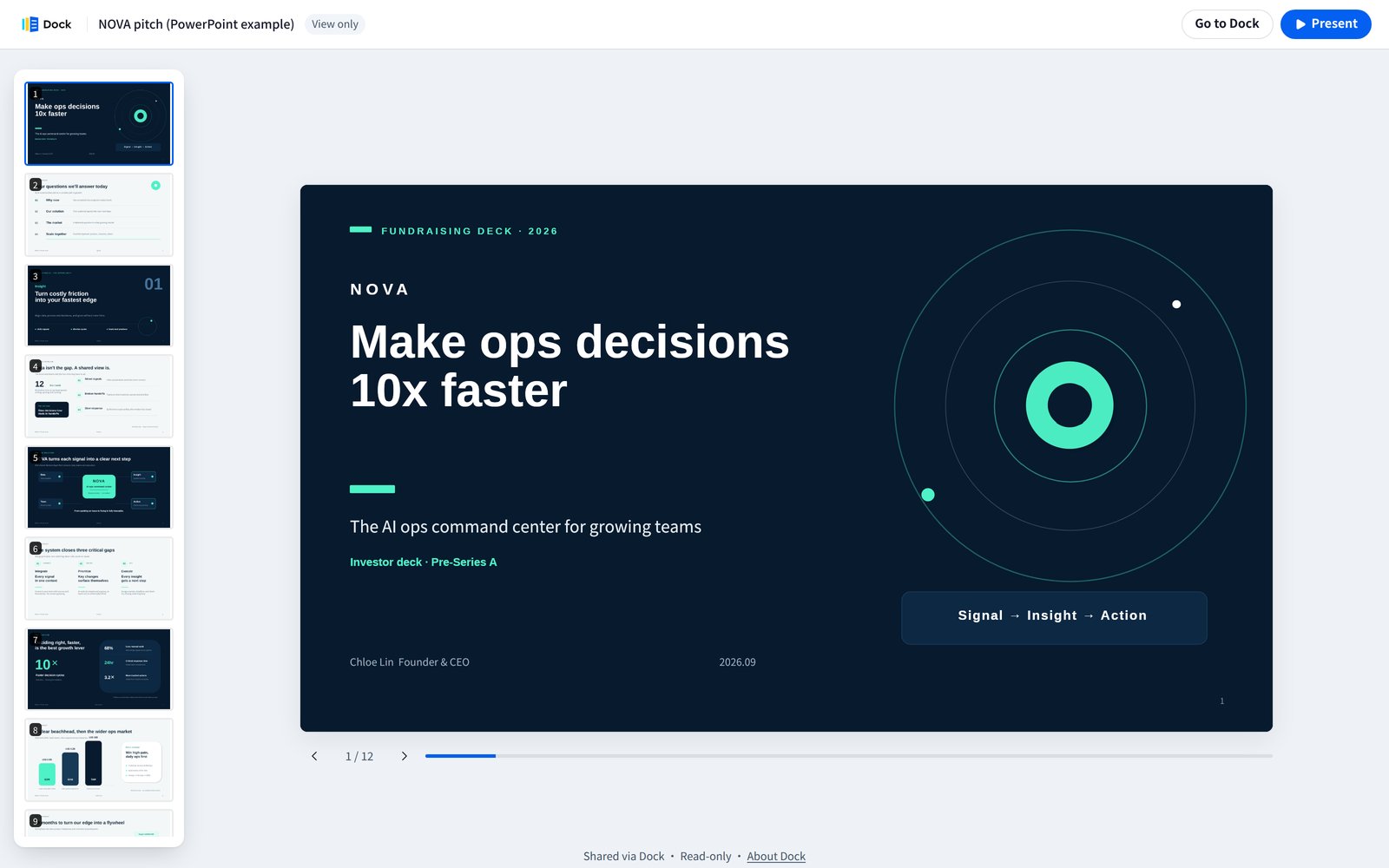
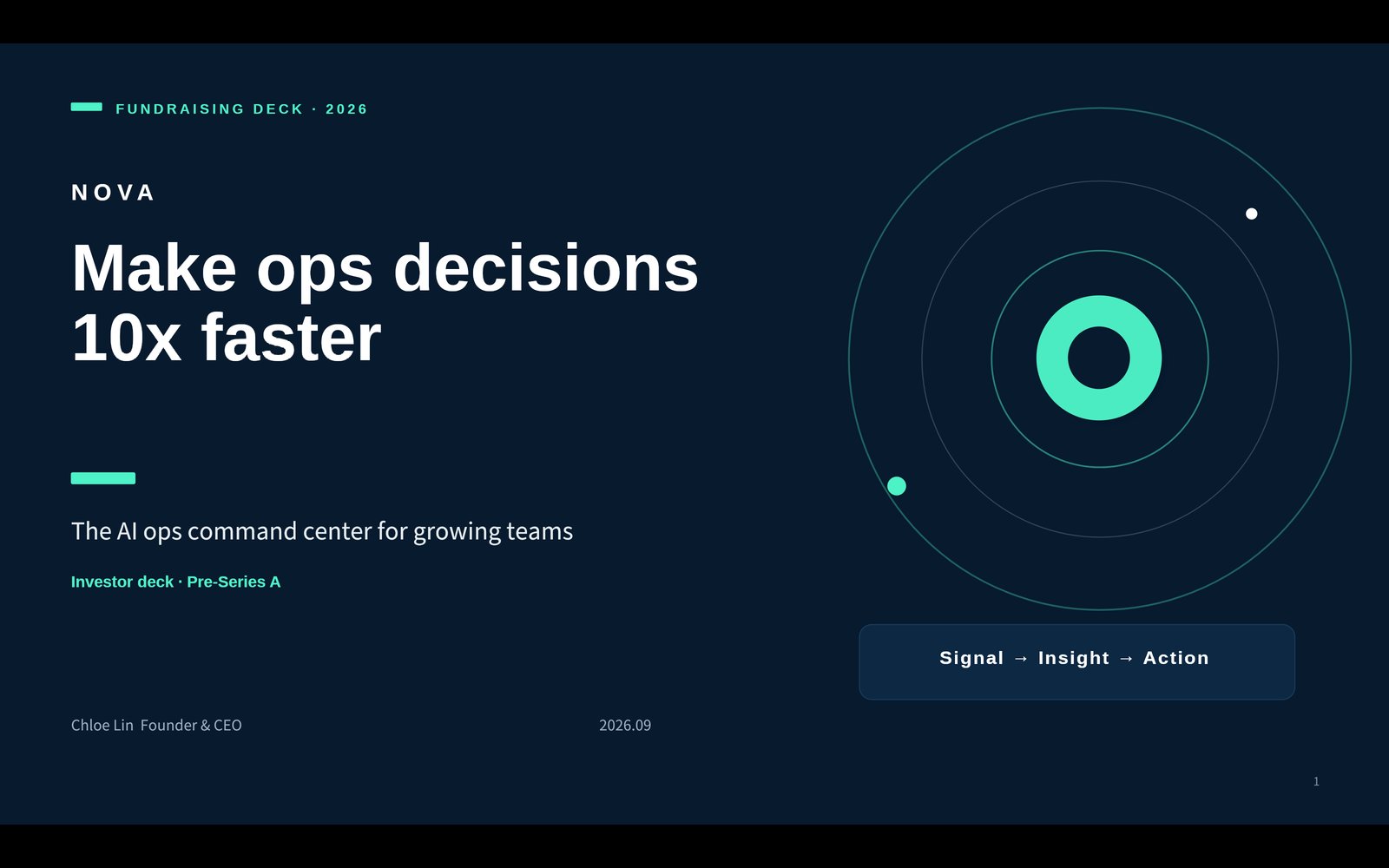
What the visitor gets
- The link opened with no sign-in, on a computer and at phone size.
- Visitors get previous and next buttons, slide thumbnails on a computer, and Present for full screen.
- We set the link to end in 30 days. You can choose 30, 60, 90 or 365 days, or no end date.
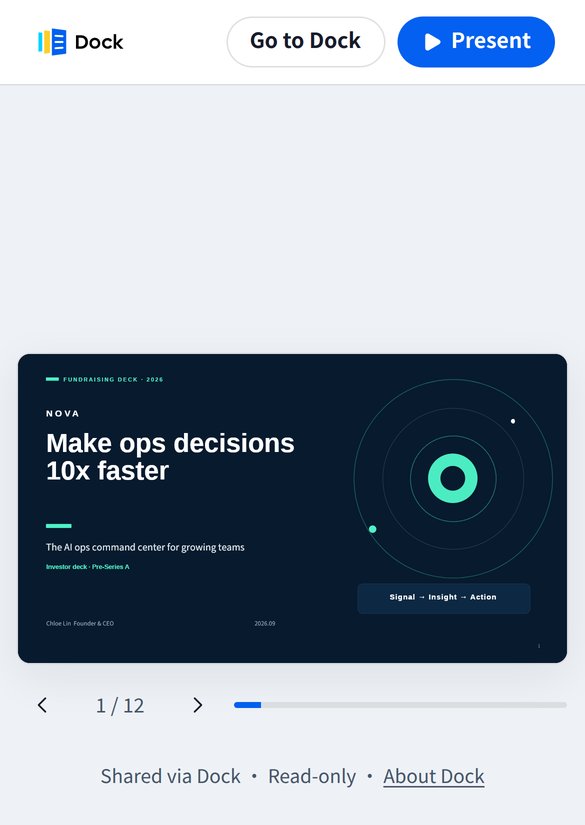
What the visitor doesn't get, and the limits
- Speaker notes never reach the visitor. The deck has notes, and the file sent to the visitor's browser had 12 slides and no notes.
- The page has no edit or download button.
- Anyone who has the link can open the deck, so forwarding it forwards access. The link includes your workspace's name.
- When you turn the link off, it stops working right away. Visitors see that it is no longer available.
- We didn't test link passwords, a link reaching its end date, or a real phone. We used a phone-sized browser.

Three steps
- 1
Sign up, then upload a PPTX, PPTM or Keynote file.
- 2
View and edit the presentation in Dock.
- 3
Create a public link and send it.
Frequently asked questions
Do viewers need an account?
No. People with the public link can view the presentation. The presentation's public page is view-only, and speaker notes don't appear on the public page.
Can a link expire?
You can choose 30, 60, 90 or 365 days, or set it to never expire. Workspace admins can also set a public link policy.
Can I still edit a Keynote file after uploading it?
Yes. Keynote (.key) files are imported as editable presentations, and you edit them in Dock.