
Excel to PowerPoint: slides built from your spreadsheet
Excel to PowerPoint in Dock: upload the workbook, ask Dock AI for a presentation, and say who it's for.
Sign in to Dock and make a presentation from your spreadsheetSign in to Dock to start. An uploaded Excel file opens as a Dock spreadsheet, and the file on your computer stays as it is.
A real example: one Excel workbook, made into a 7-slide review
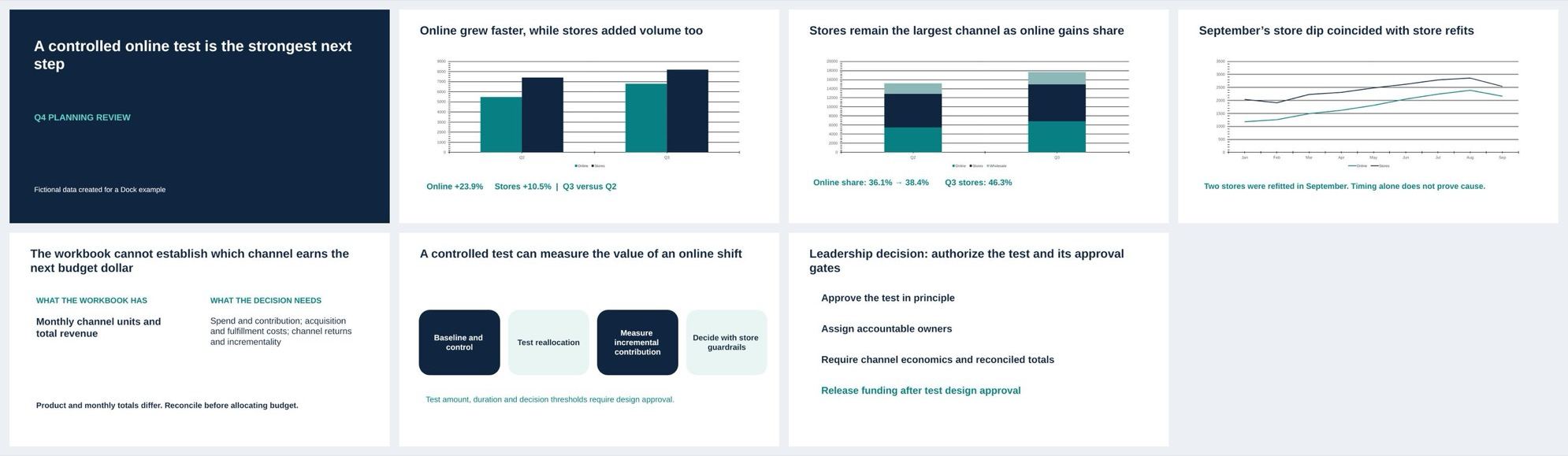
This suits a budget or sales review whose figures already live in Excel. We made a workbook with three sheets of made-up sales figures, uploaded it to Dock, asked Dock AI (the Agent in Dock) for a presentation for a Q4 budget review, read its plan and replied OK. You can download the workbook and the PowerPoint file Dock made. Result: 7 slides, 3 PowerPoint charts, and speaker notes on every slide that name the sheet and cells.

What the Agent did
- It read all three sheets (monthly sales, sales by product and notes) and showed a plan with the audience, the argument and 7 slides before building anything.
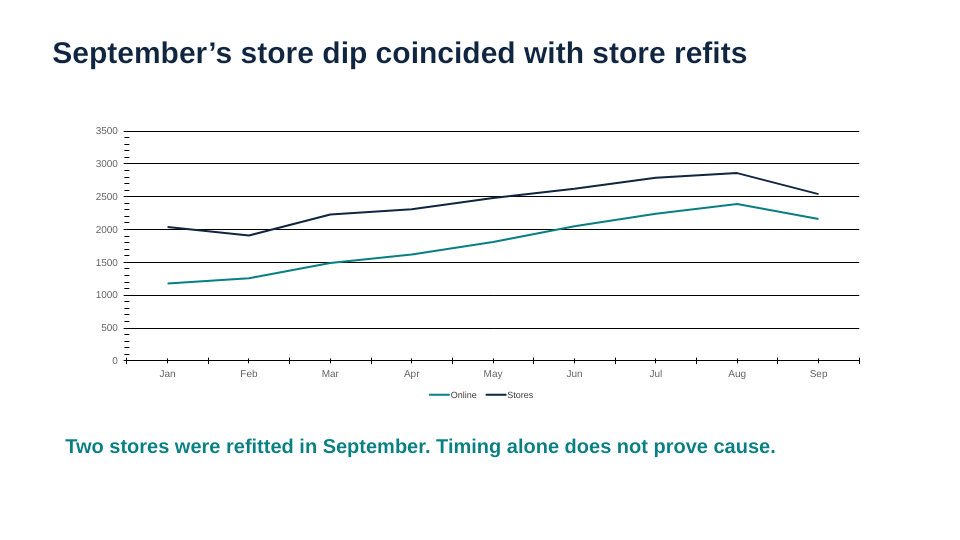
- The charts are PowerPoint charts. In the downloaded file, slides 2, 3 and 4 hold a column chart, a stacked column chart and a line chart, and we checked every value in them against the workbook.
- Every slide's speaker notes name the sheet and cells its figures came from, such as Monthly sales!A5:D10.
- Our product sheet adds up to 41,400 units and our monthly sheet to 44,940. The Agent put that difference on slide 5 for us to resolve.
- It said what the workbook can't answer: which channel earns more per dollar of budget, since the workbook has no spending or margin figures.
What to check
- In an earlier run on the same workbook, the Agent read only the first sheet. When we named the three sheets in the message, it read all of them. Name the sheets you want used.
- The Agent drew its own charts from the cells. It didn't copy the chart that was already in our workbook.
- The downloaded file stores each chart's values but no spreadsheet behind them, and we didn't try PowerPoint's Edit Data on them.
- The recommendation, a capped test of moving budget online, is the Agent's reading of the figures. Check it before you present.
- We checked the slides in Dock and the contents of the downloaded file, not in PowerPoint itself, so PowerPoint may draw them a little differently.
- We ran this example on a test copy of Dock on 2026-11-23. If Dock gives you a different result, tell us through Help.
Excel to PPT: how to turn a workbook into slides
- 1
Upload the workbook
In Dock, choose New ▸ Upload file… and pick the .xlsx. It opens as a Dock spreadsheet, and the chart in our workbook came through too.
- 2
Ask for the presentation
On Home, press + ▸ Other sources ▸ Pick items on Dock (on a Home with a paperclip instead of +, it is paperclip ▸ Pick items on Dock) and pick the spreadsheet. Then say who it's for and what it should decide. Name the sheets you want used.
- 3
Read the plan, then say OK
The Agent shows the audience, the argument, the outline and the slide count, and builds the slides after you say OK.
After the slides are made
Change only the slides you name
Ask the Agent to redo one chart or one slide, and it leaves the rest alone. If you don't like the result, use Undo these changes.
Check each number
The speaker notes name the sheet and cells behind each figure, so you can check it before you present.
Download or export
Download PowerPoint, Keynote or PDF, or export to Google Slides.
Frequently asked questions
How do I turn an Excel spreadsheet into a PowerPoint presentation?
Upload the workbook to Dock, then on Home press + ▸ Other sources ▸ Pick items on Dock, pick the spreadsheet and say who the presentation is for. The Agent shows a plan, builds the slides after you say OK, and you download them as a .pptx.
Are the charts real PowerPoint charts or pictures?
PowerPoint charts. In our run the downloaded .pptx held a column chart, a stacked column chart and a line chart, with values that matched the workbook. The file has no spreadsheet behind each chart, and we didn't try PowerPoint's Edit Data on them.
Does it read every sheet in the workbook?
Not always. In one run it read all three sheets of our workbook; in another it read only the first until we named the others. Name the sheets you want in your message.
Can I see where each number came from?
Yes. In our run, every slide's speaker notes named the sheet and the cell range behind its figures.
Why not paste the chart into PowerPoint?
You can paste one chart onto a slide you already have. Dock AI plans and builds the whole presentation from the workbook, with speaker notes that name the cells behind each figure. For one chart, paste it; for a full first draft, use Dock.
Does Dock change my Excel file?
No. Dock works from its own copy, and the file on your computer stays as it is.
Bring the workbook you already have
See the plan, say OK, then edit the slides and charts.
Last updated