
An AI presentation maker that starts from your file
Dock's AI presentation maker turns a file you already have into slides you download as an editable PowerPoint file.
Sign in to Dock and make a presentation from your fileSign in to Dock to start. The files you give it stay in your own private files.
A real example: a one-page PDF report, made into a 7-slide briefing
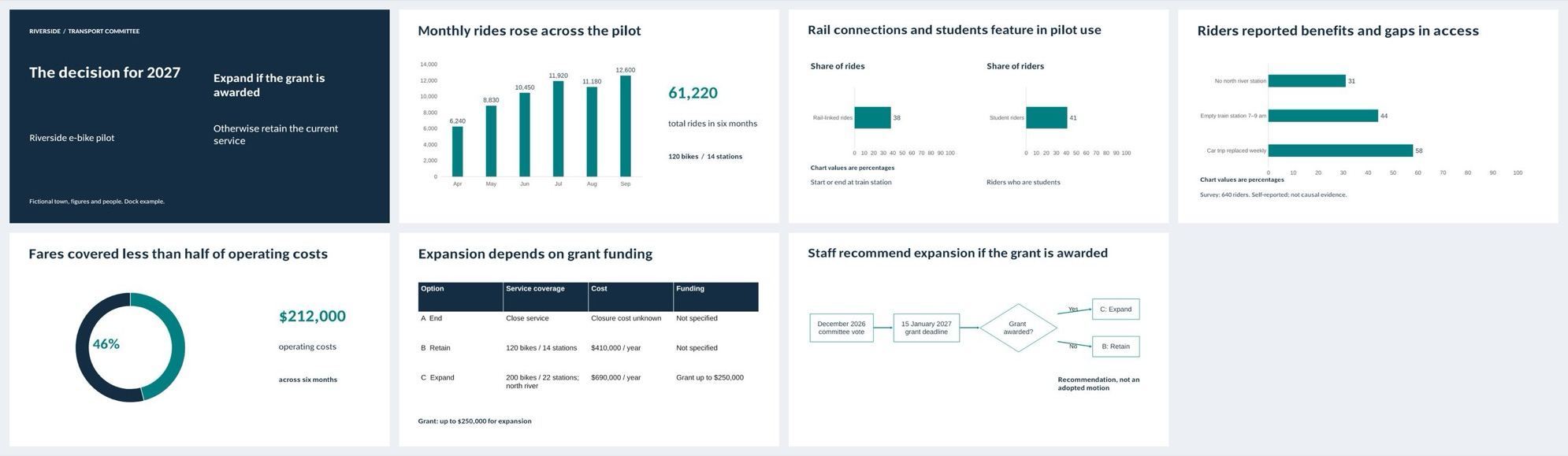
We wrote a one-page PDF report on a made-up city's e-bike pilot, uploaded it to Dock and asked for a presentation for the council committee that votes on it. We read the plan, replied OK and downloaded the PowerPoint file. You can download both. Result: 7 slides, 5 PowerPoint charts, a PowerPoint table, and a flow diagram made of shapes.
What the Agent did
- It read the whole report, table included, planned 7 slides around the committee's vote and waited for our OK.
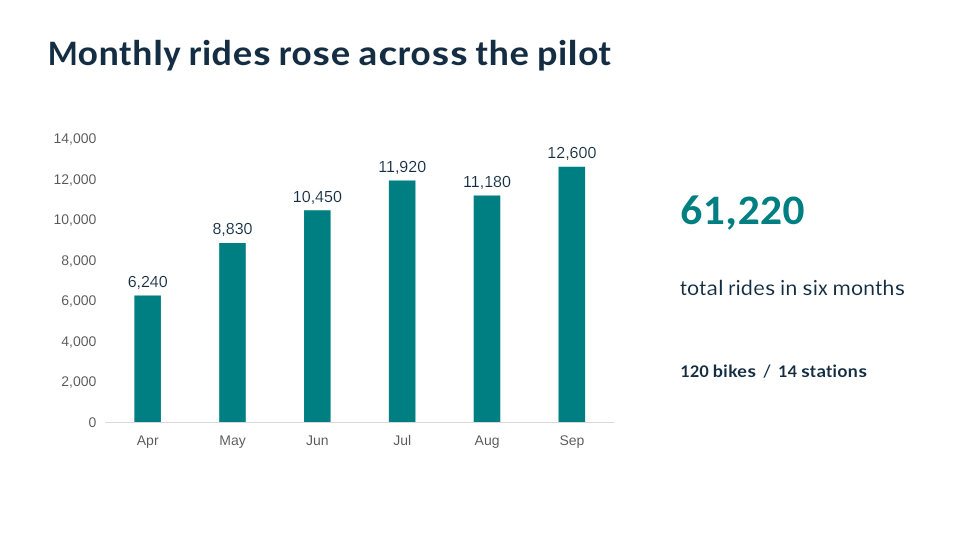
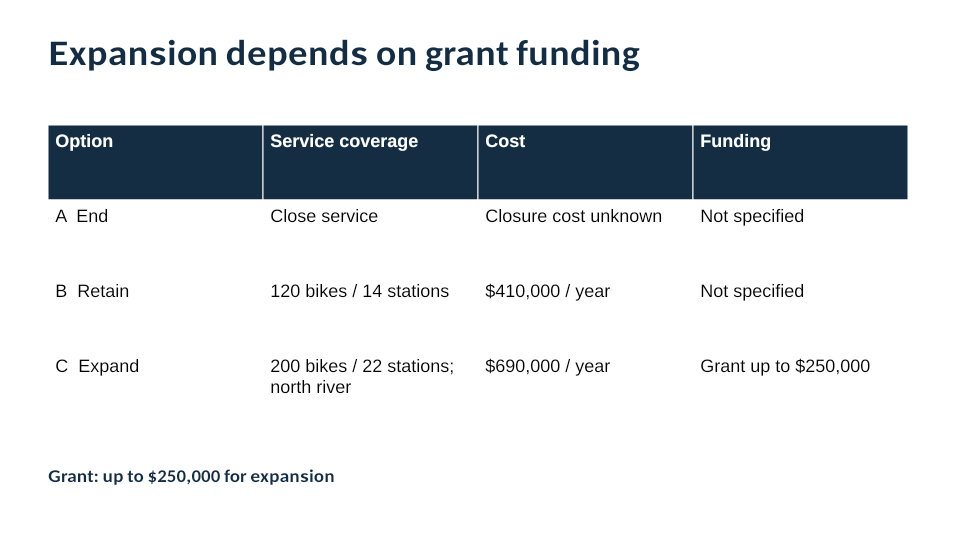
- In the downloaded file, the 5 charts (slide 3 holds two) are PowerPoint charts and the options are a PowerPoint table. We checked every value against the report.
- The flow diagram on the last slide comes through as shapes and connectors you can move and retype.
- Every slide's speaker notes name the report as the source and repeat the figures behind the slide.
- The last slide presents the report's recommendation as the staff's, still to be voted on.
What to check
- On the last slide, the Yes and No labels sit close to the arrows. Move them by hand.
- The file stores each chart's values but no spreadsheet behind them, and we didn't try PowerPoint's Edit Data on them.
- We checked the slides in Dock and the contents of the downloaded file, not in PowerPoint itself, so PowerPoint may draw them a little differently.
- We ran this example on a test copy of Dock on 2026-11-23. If Dock gives you a different result, tell us through Help.
How to make an AI PPT from your file
- 1
Bring your file
In Dock, choose New ▸ Upload file… and pick the PDF, Excel file or presentation you have. For a Word report, attach it to your message instead (see Word to PowerPoint).
- 2
Say who it's for
On Home, press + ▸ Other sources ▸ Pick items on Dock (on a Home with a paperclip instead of +, it is paperclip ▸ Pick items on Dock) and pick the file. Then say who is listening and what they should decide. Our guide to making a presentation people remember covers the one message and the close.
- 3
Read the plan, then say OK
The Agent shows the audience, the argument, the outline and the slide count, and builds the slides after you say OK.
Start from what you have
A Word report
Attach it to your message and get slides with notes.
An Excel workbook
Figures become PowerPoint charts, with the cells named in the notes.
Your resume
A talk about yourself for an interview, with a script.
Startup notes
Filled into a 12-slide pitch deck template.
A PDF of slides
Converted into slides you can edit, without the Agent rewriting them.
An old presentation
A new design for the slides you already have.
Frequently asked questions
Can an AI presentation maker use my own document instead of a prompt?
Yes. Give Dock AI (the Agent in Dock) the file and say who the presentation is for. In our runs it built slides from a PDF report, an Excel workbook, a Word report and a resume, taking the figures from the file.
What does an AI presentation maker (AI PPT maker) do?
It turns your material into slides. Dock's starts from a file you upload, shows a plan with the audience, the argument, the outline and the slide count, and builds the slides after you say OK. You download them as a .pptx and keep editing in PowerPoint. How Dock compares with Gamma and Canva is in our test of the best AI presentation makers.
Can I edit the AI slides in PowerPoint?
Download them as a .pptx. In our run the text, 5 charts, a table and a diagram were PowerPoint objects in the file, not pictures. We checked the file's contents, not PowerPoint itself.
Does it show me what it will make first?
Yes. The Agent shows a plan with the audience, the argument, the outline and the slide count, and builds the slides only after you say OK.
Will it make up facts that aren't in my file?
In this run it used the report's figures, and where the report gave none, the options table says "Closure cost unknown" and "Not specified". Check the numbers before you present.
What formats can I download?
PowerPoint, Keynote and PDF, and you can export to Google Slides.
Start from a file you already have
See the plan, say OK, then keep editing in Dock or PowerPoint.
Last updated