
Move from Canva to Dock: a deck, slide by slide
This is for you if you made a deck in Canva and now need it to keep living as a PowerPoint file: someone will edit it in PowerPoint or Keynote, or you want an agent to keep working on it. In Dock the deck is the .pptx itself. You edit that file, and you download that file, or export it to Keynote, PDF or Google Slides. Agents such as Claude Code and Codex can read and edit it through Dock’s MCP server, on every plan.
For what Canva’s PPTX keeps and drops compared with a deck made in Dock, see Canva vs Dock. This post is the how-to: we moved a real Canva deck on November 18, 2026 and checked it slide by slide.
The test deck
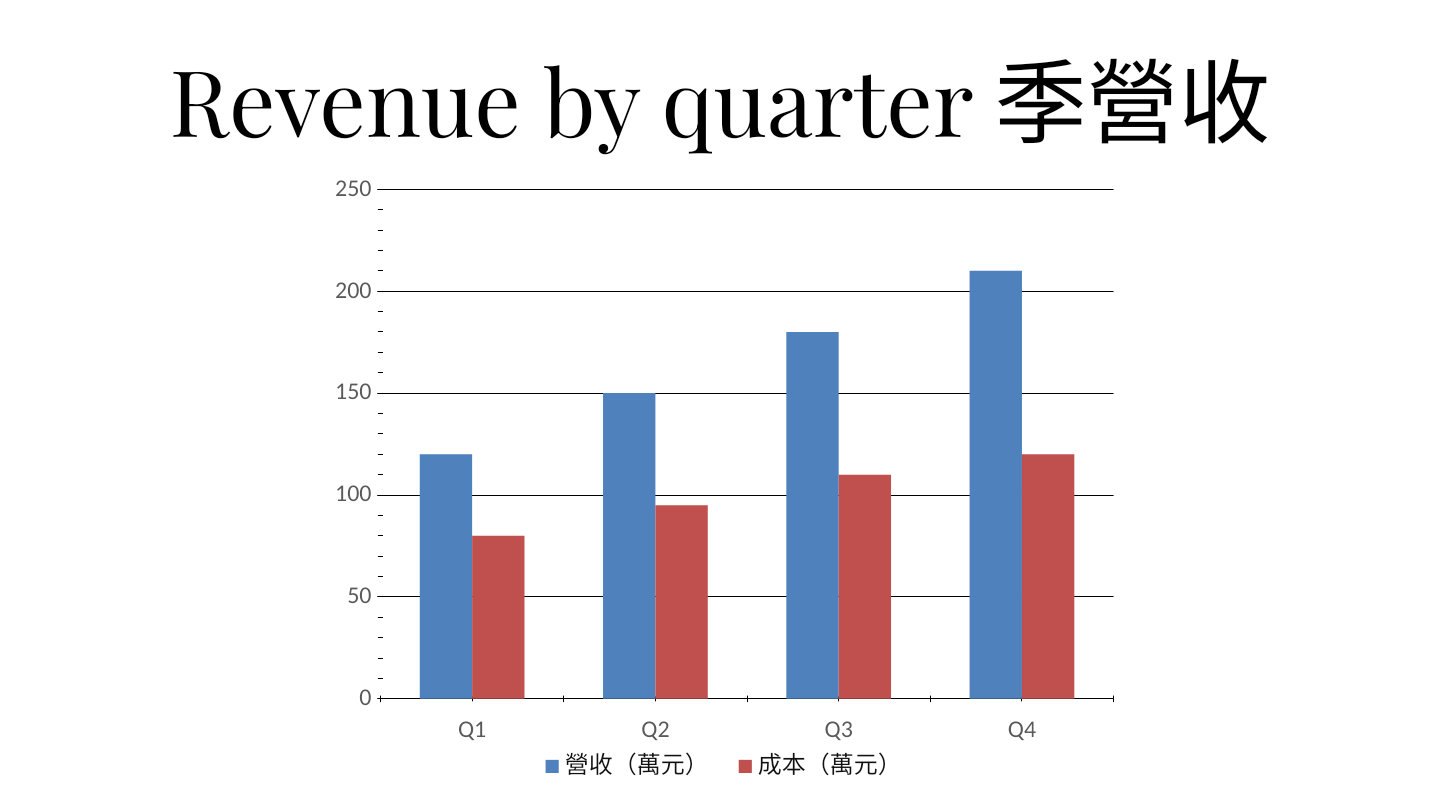
Six slides built in Canva’s editor on November 15, 2026: a title slide, a bar chart, a table, a diagram with arrows, a cropped picture and a hidden appendix, with English and Traditional Chinese text. It is the deck from the Canva vs Dock post, downloaded as PPTX with All pages selected.
1. Download the PowerPoint file from Canva
In Canva, open the design, click Share, then Download, and pick PPTX as the file type. Under Select pages, choose All. When a design has a hidden slide, Canva picks the other pages for you and leaves the hidden one out of the file.
2. Upload it to Dock
Sign up free, then upload the .pptx to Dock. An agent can do the same with the Dock command line:
$ dock slides create "Q3 review" --from-file ./canva-export.pptx
3. Check every slide against Canva
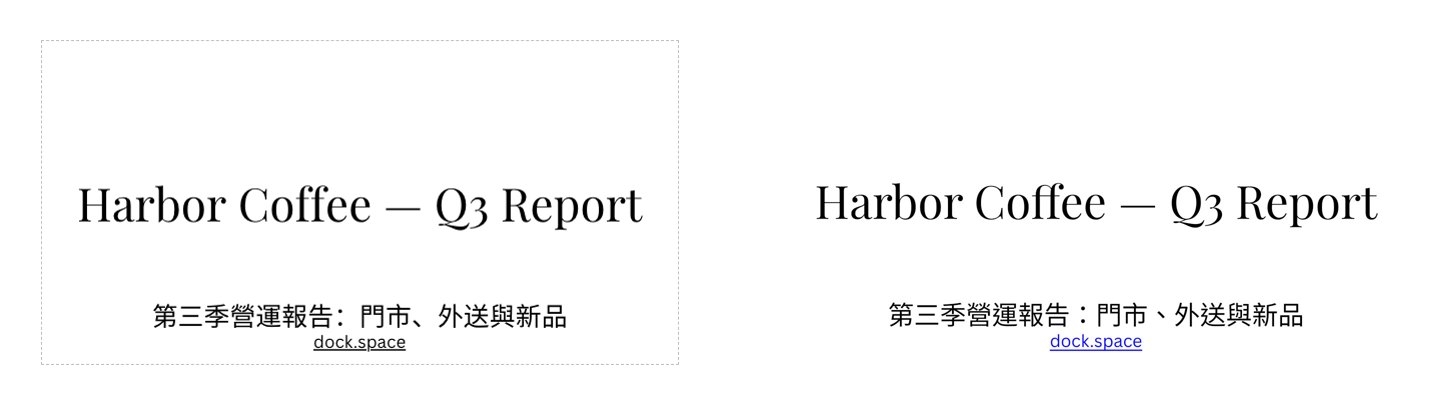
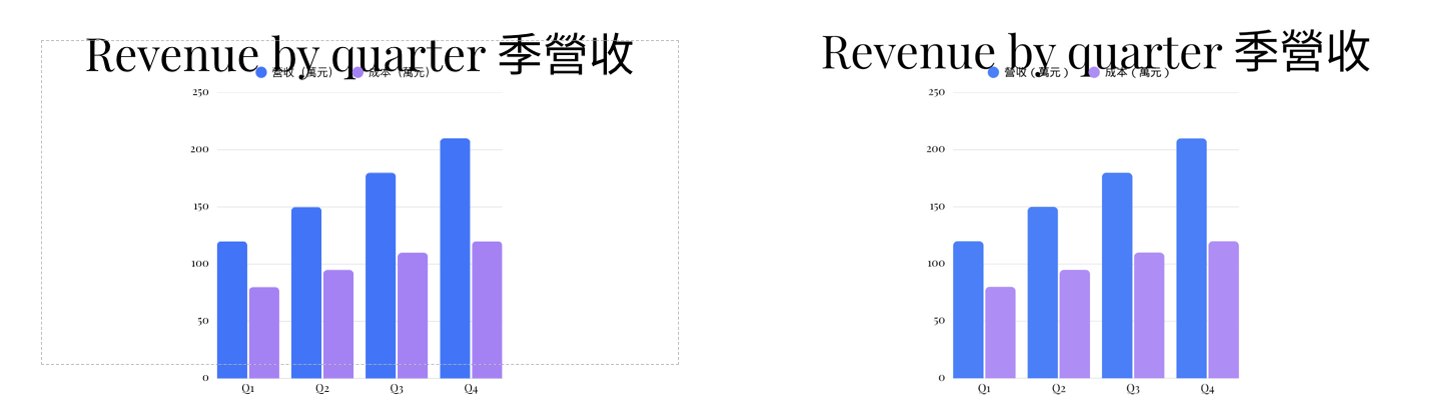
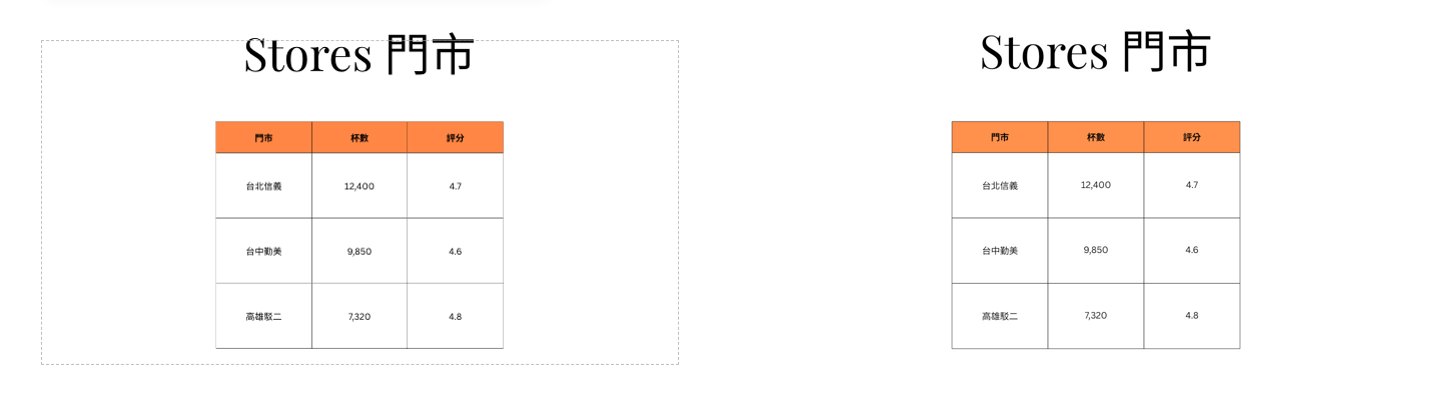
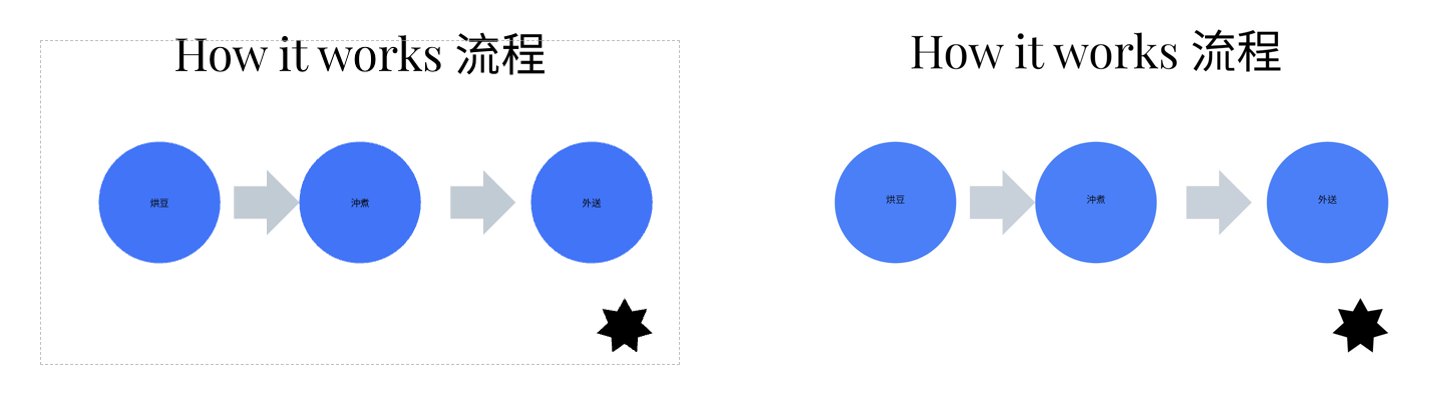
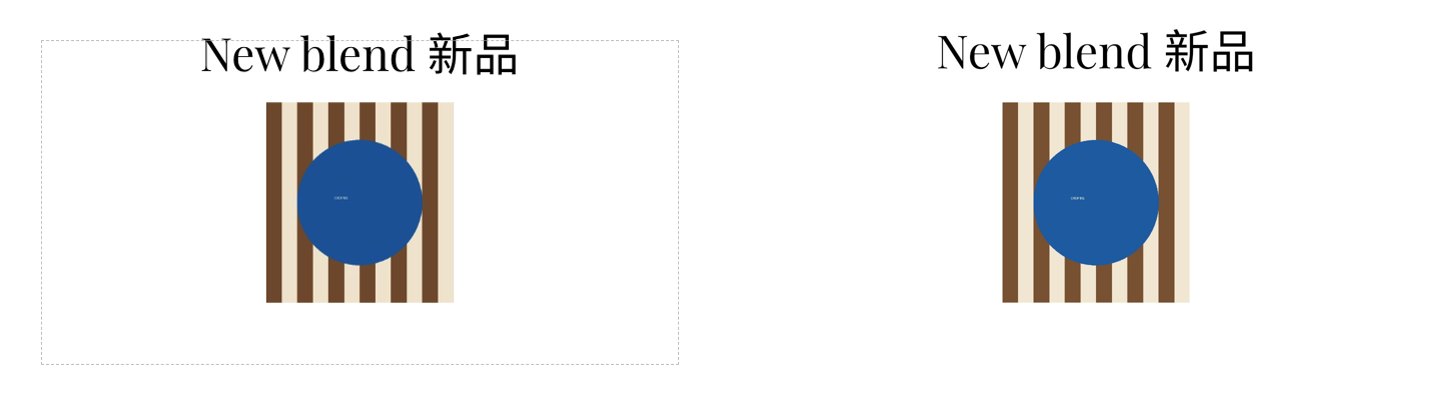
Each picture shows Canva’s editor on the left (November 15) and Dock’s render of the uploaded file on the right (November 18). The dashed frame on the left is Canva’s margin guide, not part of the slide.

4. Rebuild the chart
Canva’s PPTX holds the chart as a PNG, so in Dock it is a picture and its numbers can’t be edited. We asked Claude Code, connected to Dock’s MCP server, to rebuild it with the numbers from the Canva editor. Our prompt used the deck’s own series names, which are in Chinese; here they read Revenue and Cost:
› Use the dock MCP tools. In the presentation …, slide 2 shows a bar chart that is only a picture. Replace that picture with a real, editable clustered column chart in the same place and size. Categories Q1, Q2, Q3, Q4. Two series: Revenue 120, 150, 180, 210 and Cost 80, 95, 110, 120. Keep the legend. Then render slide 2 to check it.
It added a chart with dock_slides_upsert_chart, deleted the picture and rendered the slide, then reported that Canva’s picture box was taller than the slide, so in the same box the legend and the Q1 to Q4 labels fell off the bottom. We answered “Yes. Fit the chart below the title”, and it moved the chart with one SetPos and rendered again. The two turns took 31 s and 12 s.
A chart Dock builds draws its axis labels and legend at 10 pt, small next to Canva’s. We set them to 24 pt, about the size of Canva’s labels. You can ask your agent: “Set the chart’s axis labels and legend to 24 pt.” To do it from the command line, first find the ids in your own presentation:
$ dock slides get DECK_ID
It lists each slide with its id, such as ## Slide 2 {#sl2}, and the chart under it, such as - {#4 Chart}. Put those ids in place of SLIDE_ID and SHAPE_ID, and your presentation’s id in place of DECK_ID:
$ dock slides edit DECK_ID EditChart --args '["SLIDE_ID",SHAPE_ID,"{\"elementFont\":\"catAxis/size=24|valAxis/size=24|legend/size=24\"}"]'
We ran it on our test deck (sl2, shape 4) on 2026-11-19.
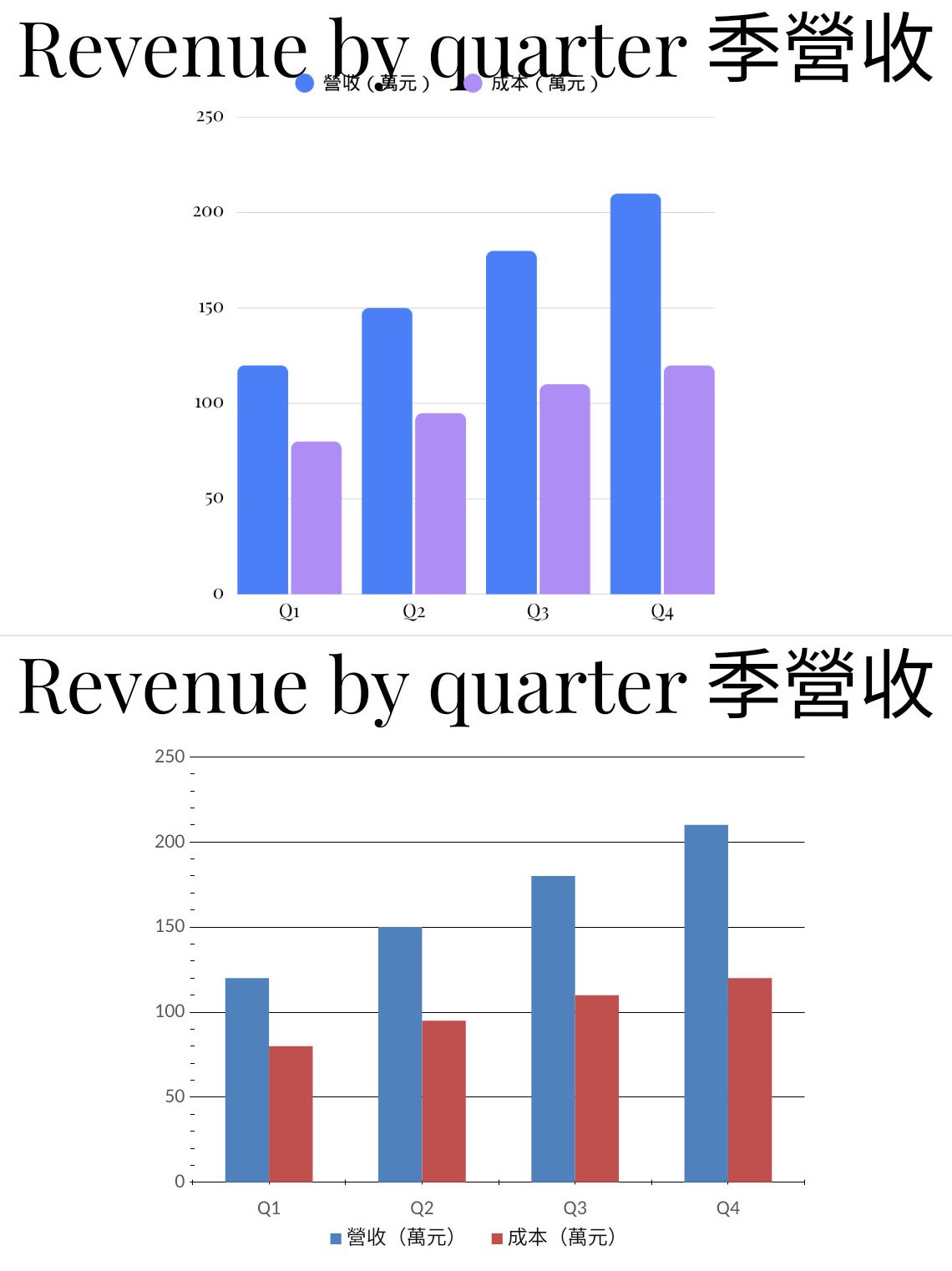
The PPTX Dock exports after this has the chart as a chart part (ppt/slides/charts/chart1.xml), not a picture.
5. Switch the fonts with Replace Fonts
Canva’s file sets its body text, Chinese included, in Canva Sans, and the fonts Canva puts in the file have no Chinese characters. Replace Fonts switches one font to another in the text of every slide, layout and master, in one step. It leaves a chart’s axis labels and legend, and Asian-language text that takes its font from the theme, as the Keynote to PowerPoint page says. That includes the chart you rebuilt in step 4. In the file Dock exported, that chart names no font of its own, so its axis labels and legend follow the theme font (Calibri in this deck), and Replace Fonts leaves them as they are. To set them, ask your agent: “Set the chart’s axis labels and legend to Noto Sans TC.” To do it yourself from the command line, use the ids you found in step 4:
$ dock slides edit DECK_ID EditChart --args '["SLIDE_ID",SHAPE_ID,"{\"elementFont\":\"catAxis/family=Noto Sans TC|catAxis/ea=Noto Sans TC|valAxis/family=Noto Sans TC|valAxis/ea=Noto Sans TC|legend/family=Noto Sans TC|legend/ea=Noto Sans TC\"}"]'
We ran it on our test deck (sl2, shape 4) on 2026-11-18, and the chart in the exported file then named Noto Sans TC for its category axis, value axis and legend.
- On the Home tab, in Editing, open Replace ▾ and choose Replace Fonts….
- In Replace:, pick Canva Sans. In With:, pick Noto Sans TC, one of the fonts Dock comes with, which has Chinese characters.
- Click Replace. It is one step, and one undo takes it back.
We ran the same ReplaceFonts operation from Dock’s command line on the test deck and read the exported file. Every run that named Canva Sans, on slides 1, 3, 4 and 6, now names Noto Sans TC. Two things did not change. The table’s header row names a different font, Canva Sans Bold, so it stayed; pick that one in Replace: and run Replace Fonts again. And the list of fonts embedded in the file still names Canva Sans, because Replace Fonts leaves embedded fonts alone.
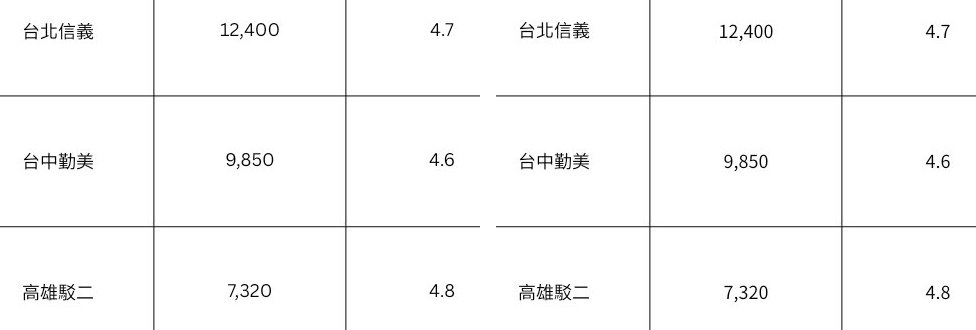
What changes is the file: its text now names a font that has the characters it uses. Dock’s PPTX names Noto Sans TC and puts that font in the file too.
6. Add the animations back
Canva drops animations from its PPTX; it warns about this before the download. Add them again on Dock’s Animations tab. Transitions made in Canva come through.
Frequently asked questions
Can Dock open a Canva design directly?
Not yet. Download the design from Canva as PPTX and upload the file to Dock.
Will my Canva charts stay editable in Dock?
No. Canva's PPTX download turns a chart into a picture. Rebuild it in Dock, or ask an agent connected to Dock to rebuild it with the numbers, as in step 4.
Did the slides look the same after the move?
In our test on 2026-11-18, slides 2 to 5 matched Canva's editor. On slide 1 the link turned blue, and on the hidden slide 6 one sentence wrapped onto two lines.
Do I need a paid Dock plan to move a design?
No. The Free plan uploads and edits a PPTX. Downloading it again counts as an export, and Free has 3 exports a month.
Related
The move was measured on Dock staging on November 18, 2026 (the chart text size on November 19), with the Canva download made on November 15, 2026. Both products may change with updates.