
Connect Claude Code to Dock
Once Claude Code is connected, it can make, read and edit the presentations and documents in your Dock. These are the steps /agents shows for Claude Code, then a prompt we ran and what it made.
Set up Claude Code
Connect over MCP
- Endpoint
https://app.dock.space/v1/mcp
- Transport
- Streamable HTTP
- Sign-in
- In the browser the first time, or
Authorization: Bearerwith a personal access token - Plan
- Every plan, Free included
-
Add Dock to your app
Run this in a terminal:
$ claude mcp add --transport http dock https://app.dock.space/v1/mcpThen run
/mcpin Claude Code and pickdockto sign in. -
Sign in the first time
The app opens Dock in your browser: sign in, pick a workspace if you have more than one, and click Authorize. There's no token. The connection covers that one workspace and stays signed in as long as it's used at least once every 30 days; to use another workspace, connect again.
Install the command line
For macOS and Linux. There's no Windows version yet.
-
Install it
$ curl -fsSL https://app.dock.space/install.sh | sh -
Sign in
$ dock loginIt prints a link and a code and opens your browser. Approve in GNTC Login and the terminal prints
Logged in. There's no token to paste. -
Choose a workspace
List your workspaces:
$ dock workspace listThen set the one to work in, with its id in place of
WORKSPACE_ID. Without this step, commands go to a default workspace.$ dock config set workspace WORKSPACE_ID
Claude Code and Codex: install the plugin (recommended)
The plugin gives Claude Code or Codex Dock's MCP server and slide skills in one install.
-
Install the Dock plugin
In Claude Code 2.1.275 or later:
› /plugin install dock-space --marketplace gntc-labs/skillsIn an older Claude Code:
› /plugin marketplace add gntc-labs/skills
› /plugin install dock-space@gntc-labs
In Codex, from a terminal:
$ codex plugin marketplace add gntc-labs/skills
$ codex plugin add dock-space@gntc-labs
-
Sign in the first time
The plugin carries no token. Sign in to Dock with OAuth the first time you use it: in Claude Code, run
/mcpand pickplugin:dock-space:dock. In Codex, runcodex mcp login dock.
Or paste this into your agent
Your agent runs the install and tells you how to sign in.
I'd like you to set up the Dock plugin: Dock's MCP server and slide skills, so you can make and edit presentations in my Dock.

If you are Claude Code, run:
claude plugin marketplace add gntc-labs/skills
claude plugin install dock-space@gntc-labs

If you are Codex, run:
codex plugin marketplace add gntc-labs/skills
codex plugin add dock-space@gntc-labs

The plugin signs in with OAuth and carries no token, so don't ask me for one. Signing in is the one step I do myself, so when the install is done, tell me how: in Claude Code, restart it, run /mcp and pick plugin:dock-space:dock; in Codex, run codex mcp login dock in a terminal.

You're done when `claude plugin list` or `codex plugin list` shows dock-space@gntc-labs as enabled.
-
Try it
$ dock whoami
$ dock slides create "Q3 review"
Then ask your agent to use the
dockcommand;dock --helplists everything. An agent can also call the tools of Dock's MCP server from the shell withdock mcp toolsanddock mcp call.
Advanced: a personal access token for CI and scripts
-
Create a personal access token
In Dock, open Settings → Access tokens. Name the token, tick the scopes for what it will touch and click Create token. The token is shown only once, and it works only in the workspace you created it in.
- Slides: Read and Write (
decks:read,decks:write) - Documents, Sheets and Pages: Read and Write (
docs:*,sheets:*,pages:*) - Proposals: Read and Write (
proposals:read,proposals:write), which "show me first" needs - Live collaboration: Connect (
collab:connect), which every edit needs
- Slides: Read and Write (
-
Hand it to your app
For MCP, send it as an
Authorization: Bearerheader. In Claude Code, run this with your token in place ofYOUR_TOKEN:$ claude mcp add --transport http dock https://app.dock.space/v1/mcp --header "Authorization: Bearer YOUR_TOKEN" $ claude mcp list dock: https://app.dock.space/v1/mcp (HTTP) - ✔ Connected
For the command line, pass the same token. It works in the token's workspace. If you set a workspace with
dock config set workspace, that one wins: exportDOCK_WORKSPACEwith the token's workspace id as well.$ export DOCK_TOKEN=YOUR_TOKEN $ dock whoami
A prompt and what it made
We ran this prompt in Claude Code on 2026-11-18, connected to Dock's MCP server, and it finished in 31 seconds.
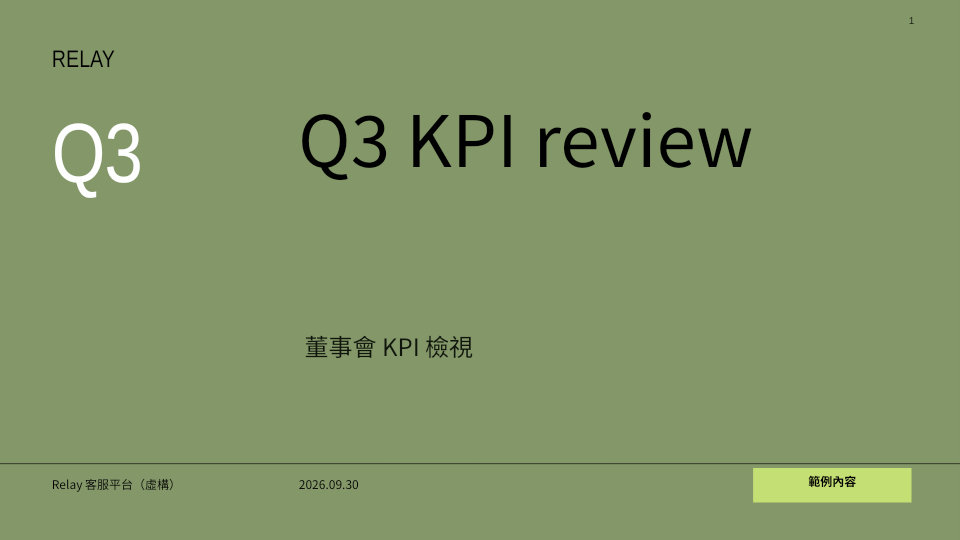
› Use the dock MCP tools. Create a presentation titled "Q3 KPI review" from the Dock template g6-kpi-report, change the title on its first slide to "Q3 KPI review", render that slide to check it, then export the presentation as PPTX The tools it called, in order
dock_slides_create: made the presentation from the g6-kpi-report template, 11 slidesdock_slides_get: listed slide 1's shapes: the title is shape #5dock_slides_replace_text: refused, nothing sent: the title is split across two lines, so no single run holds the whole worddock_slides_read: read the title's two runsdock_slides_apply: the first call used a wrong argument name and was refused before anything was sent; the second set both runs in one change, and Dock shrank the text to fitdock_slides_render: rendered slide 1 to check it (below)dock_slides_export: exported the PPTX: 11 slides, 96,904 bytes
Frequently asked questions
Which Dock plan does Claude Code need?
Any plan, Free included. Dock's MCP server and the dock command line work on every plan.
Does Claude Code need a token?
No. Claude Code opens Dock in your browser the first time: sign in, pick a workspace and click Authorize. The connection covers that one workspace and stays signed in as long as it's used at least once every 30 days.
Can Claude Code edit a PowerPoint file I already have?
Yes, once the file is in Dock. Upload the .pptx to Dock, then name it in your prompt: Claude Code edits it through Dock's tools, and you download a PPTX again when it's done.
Other apps
Last updated