
PDF to PowerPoint that's actually editable
"When I converted this pdf to a PowerPoint, the fonts and other objects came over with odd characters," one user wrote on Microsoft Q&A. Dock rebuilds your PDF as slides with text boxes, and pictures the PDF doesn't crop as separate objects. You sign in to Dock to convert it, then check the slides in your browser before you download.


Text PDFs up to 100 pages, image PDFs up to 30 pages, files up to 48 MB.
Why fonts and text break when you convert a PDF to PowerPoint
"When I converted this pdf to a PowerPoint, the fonts and other objects came over with odd characters."
"Exporting from PDF to Powerpoint from Acrobat Pro on a Mac, the fonts are not showing up correctly."
"Some text frames which were separate in PDF are combined to be a table in PPT."
In an editable PowerPoint, each block of text is a text box you can click into and type. A picture the PDF doesn't crop comes out as a separate picture.
If the PDF doesn't embed a font, the computer that opens the converted file swaps in a different one. Some converters also split one block of text into several pieces, so lines break in odd places and the slide looks scrambled.
How Dock rebuilds text boxes, images and fonts
For a PDF with text, Dock reads the text, pictures and shapes stored in the file and rebuilds them as objects on the slide.
Text boxes
Text becomes text boxes that keep their font, size and position. Click in and type.
Original images
A picture the PDF doesn't crop becomes a separate object at its own size. A cropped one stays in the picture behind the slide.
Fonts stay named
Text keeps the PDF's font name and size. The PowerPoint names the font and embeds none, so use Replace Fonts to switch to a font the other computer has.
A real example: one PDF, converted in Dock
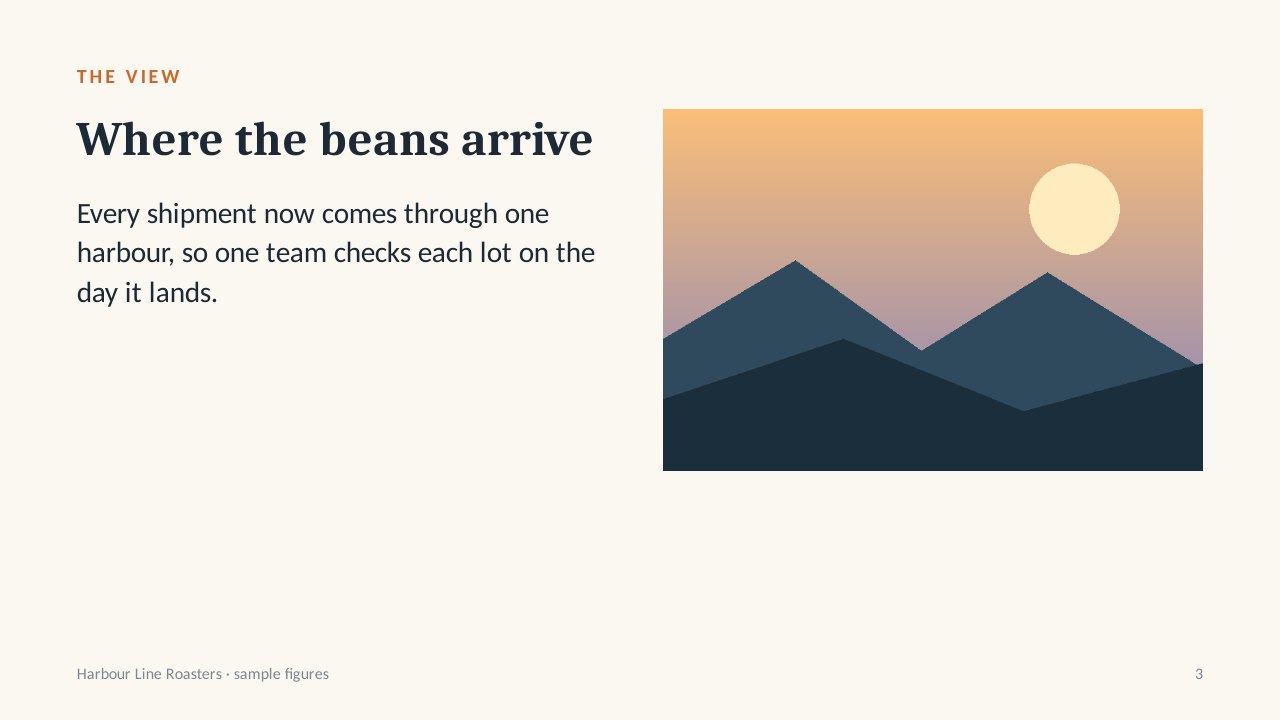
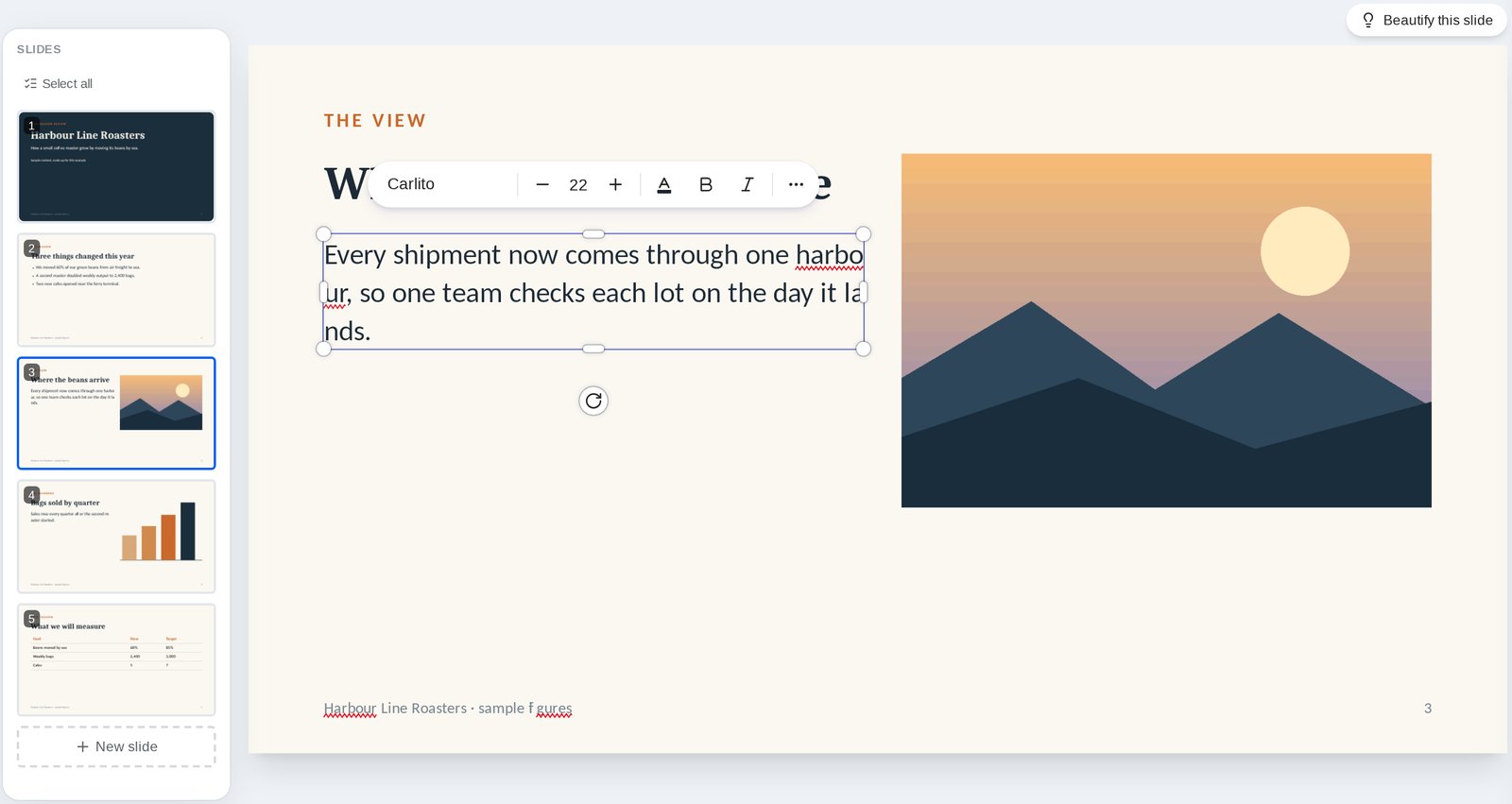
We made a five-page PDF with text, a picture, a bar chart and a table, then converted it in Dock. You can download the PDF; the result is shown as screenshots.
What stayed editable
- All 5 pages became slides, and Dock put all of the PDF's text in 39 text boxes.
- Text kept its fonts, Caladea and Carlito, and its sizes, from 54 pt down to 12 pt.
- A wrapped paragraph stayed one text box you can click into and type.
- The picture became a separate object at its own size, 900 by 600 pixels.
What changed, and the limits
- Lines can break in new places, even inside a word: on slide 3, "harbour" and "lands" split across two lines.
- Some words picked up a gap. "coffee" became "coff ee", "figures" draws as "f gures", and the spaced-out heading "THE SEASON" became "TH E SE ASON". Check the text and retype these.
- The bars of the chart became plain shapes, and the table became separate text boxes and lines. Neither is a chart or a table you can edit as one.
- A picture the PDF crops, such as one with rounded corners, stays in the full-slide picture behind the text. In a second run with rounded corners, the same picture did not become an object.
- The PowerPoint names Caladea and Carlito and embeds no font, so another computer may swap them. Replace Fonts switched Carlito to Arial in the text.
- We checked the file in Dock, not in PowerPoint, so PowerPoint may draw it differently.
- Text that comes out as gibberish has a different cause, and a different fix: how to fix garbled text and fonts after converting.
Convert a PDF to PowerPoint in three steps
- 1
Upload
Sign in to Dock and upload your PDF.
- 2
Check
Look through the slides in the editor and fix any text right there.
- 3
Download
Download a PPTX or Keynote file, or export to Google Slides.
What you can do after converting
Find and replace
Change a name or number that shows up on several slides in one step.
Insert slides
To use a few pages of the PDF in a presentation you already have, open it in the Insert slides pane and select them. They go in after the current slide.
More export formats
You can also export a PDF, an offline HTML file or an MP4 video.
File limits and formats
These limits apply to each conversion. Dock also opens PowerPoint (.pptx, .pptm) and Keynote (.key) files.
Text PDFs: up to 100 pages
A PDF with text you can select converts up to 100 pages at a time.
Image PDFs: up to 30 pages
A PDF where each page is a picture converts up to 30 pages at a time.
Files: up to 48 MB
Each PDF you upload can be up to 48 MB.
When each page is one picture
Some PDFs have a single picture on each page, such as presentations exported from Gemini Notebook or NotebookLM. You can't select the words in them. Dock can still turn them into editable slides, and the AI-made slides page explains how.
Frequently asked questions
Can I edit the text after converting a PDF to PowerPoint?
Yes. Dock converts a PDF to an editable PPT: the text becomes text boxes you can click into and edit, and each box keeps its font, size and position.
Will my fonts change?
They can, when a font isn't embedded: another computer then replaces it with one it has. The PowerPoint from Dock names the PDF's fonts and embeds none. Use Replace Fonts to switch to a font the other computer has before you download.
Do I need a Dock account to convert a PDF?
Yes. You sign in to Dock to convert a PDF, because the converted slides open in the Dock editor. There you check them and fix any text before you download a PowerPoint file.
Can Dock convert PDFs from Gemini Notebook or NotebookLM?
Yes. PDFs exported from Gemini Notebook or NotebookLM usually have one picture per page, and Dock can turn them into editable slides. The AI-made slides to editable page explains how that works.
Can I convert a PDF to Google Slides?
Yes. Convert the PDF in Dock, then export the result to Google Slides. Dock puts a copy in your Google Drive, and Google converts the file on import, so some effects may look different there.
Start from the slides you have
Upload your PDF, fix the slides you need, then download a PowerPoint file.