
Translate a PowerPoint and keep the layout
To translate a PowerPoint, ask Dock AI. It changes the words, chart labels and speaker notes, not the layout.
Sign in to Dock and translate a presentationSign in to Dock to start. Upload the .pptx with New ▸ Upload file… first.
A real example: a 6-slide English deck, translated into Japanese
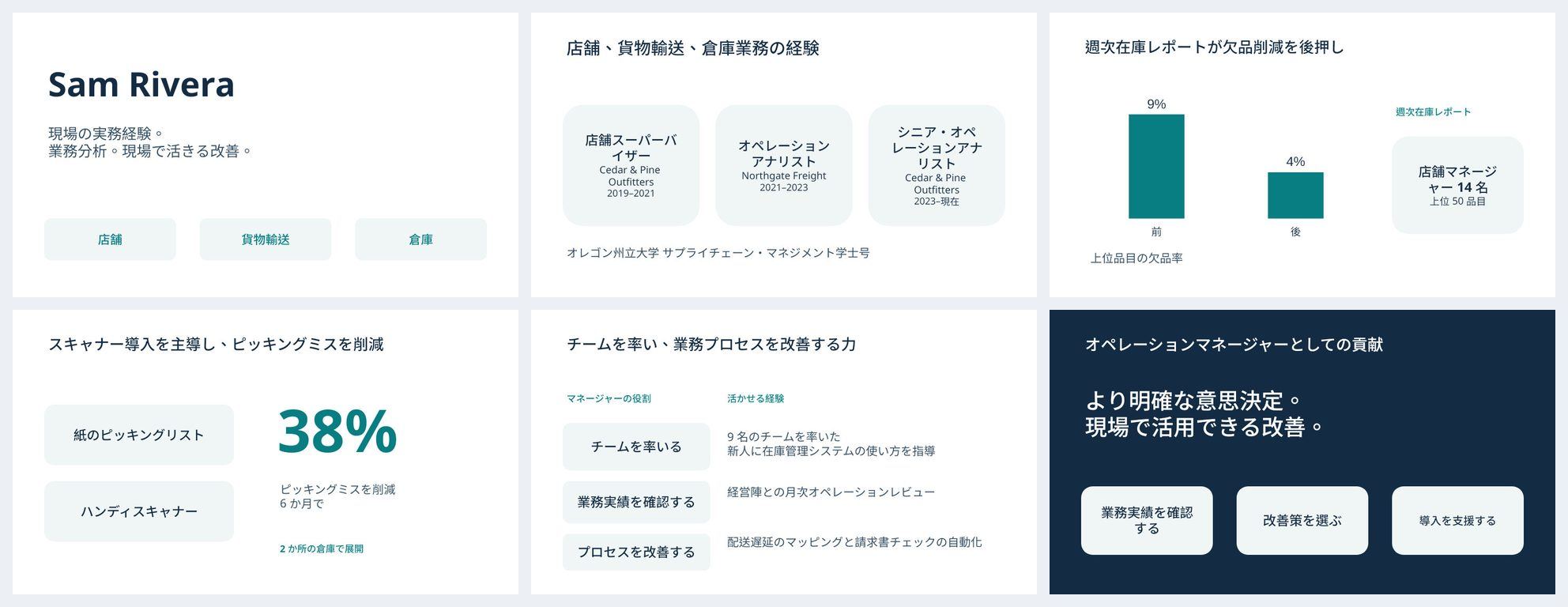
We took a copy of the 6-slide interview deck from our resume example, opened Dock AI (the Agent in Dock) on it and asked for the whole presentation in Japanese, with the layout, fonts, colours and charts left where they were. Result: every slide, the chart labels and the speaker notes in Japanese, and no layout errors in Dock's layout check.


What the Agent did
- It translated the text on all 6 slides and kept the names of people and companies (Sam Rivera, Cedar & Pine Outfitters, Northgate Freight) in English.
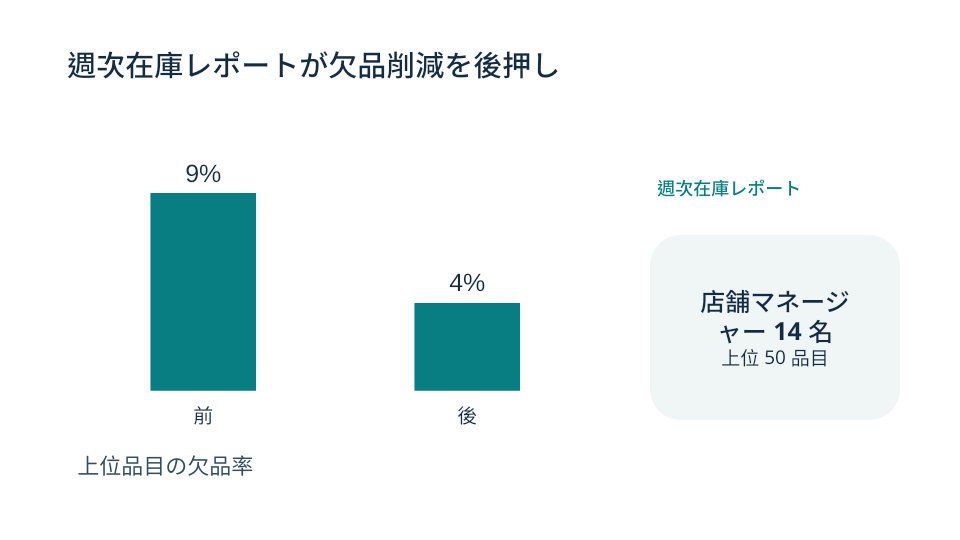
- It translated the speaker notes and the chart's labels; the chart's values stayed 9 and 4.
- The slides kept their boxes, fonts, colours and order. Dock's layout check found no errors afterwards, only a spelling note on "Northgate".
- When it finished, it named the slides to look at: the wrapped job titles on slide 2, the dense text on slide 5 and the two-line closing statement on slide 6.
What to check
- Some Japanese job titles break in the middle of a word inside their cards, such as on slides 2 and 3. Widen the box or add a line break where you want it.
- Translating is an AI edit, so it uses AI credits; Free includes 400 at sign-up.
- The Agent translates the presentation in place. Ask it on a copy if you need the original too.
- We checked the slides in Dock and the contents of the downloaded file, not in PowerPoint itself.
- We ran this example on a test copy of Dock on 2026-11-23. If Dock gives you a different result, tell us through Help.
How to translate a PowerPoint in Dock
- 1
Upload the deck
Choose New ▸ Upload file… and pick the .pptx. It opens in Dock's editor.
- 2
Ask Dock AI
The Agent changes the deck itself, so to keep the original, duplicate it first (Duplicate in the deck's menu in your file list) and work on the copy. Open Dock AI in the deck and ask for the whole presentation in the language you need, with the layout kept.
- 3
Check and download
Look over the slides it names, fix any line breaks, then download the .pptx.
Translate only what you select
To translate a few boxes, select them, right-click and choose Translate to…, then Traditional Chinese, English or Japanese. Press ⌘Z to undo (Ctrl+Z on Windows and Linux). Table cells can't be translated this way yet.
Frequently asked questions
How do I translate a whole PowerPoint without breaking the layout?
Upload the .pptx to Dock, open Dock AI in the deck and ask it to translate the whole presentation and keep the layout. In our run, 6 slides, their chart labels and speaker notes came back in Japanese, and Dock's layout check found no errors.
Does it translate the speaker notes?
Yes, when you ask for them. In our run it translated the notes on all 6 slides.
Which languages can I translate into?
Dock AI translates into the language you name in your message; we tested Japanese. The right-click Translate to… menu offers Traditional Chinese, English and Japanese.
Will names and numbers change?
In our run, names of people and companies stayed in English, and the chart's values didn't change. Check them anyway before you present.
Can I download the translated PowerPoint?
Yes. Download it as a .pptx, or as Keynote or PDF.
Bring the deck you need in another language
Ask once for the whole presentation, then fix the line breaks it points out.
Last updated