Sample animation with made-up files, numbers and messages. Want Claude Code to work in Dock? See how to connect it →
What do you want to do with your presentation?
1Image presentation to editable
Edit the text inside image slides
Slides from Gemini Notebook or NotebookLM export as images. Sign in, upload the PDF or images, and Dock turns them into text boxes and images you can edit. Then download a PPTX.
Text keeps its size and position, and switches to the theme font, which you can change in the side panel
Anyone with the linkCan view without signing inCan view
Set a passwordOnly people with the password can open itPaid plans
app.dock.space/w/your-team/k/…Copy link
3Upgrade an old presentation
Give an old presentation a new design and keep the charts editable
Upload a PPTX or Keynote file and say what you want to change. The agent shows you a plan first, then saves the new design as a copy. Your original stays as it was.
The original 2026 Q3 business reviewUpgraded (sample): saved as a copy, and the original is unchanged
4Templates and AI generation
Pick a layout, then add your content
Choose from 34 templates and preview each slide, then describe what you want to make. You can also start from one sentence, or hand the job to your own agent.
The agent's proposed changes (sample)Needs your review
"Change the price on slide 4 to NT$ 4,600, and turn the bullets on slide 7 into a bar chart"
Slide 4Price NT$ 4,200 NT$ 4,600
Slide 74 bullet lines → bar chart, same numbers
Slide 7Title Route performance Four routes, three ahead
Layout check: the agent rendered the edited slides and found no text overflowing
RejectAdopt 3 changes
Import and export
Export back to PowerPoint, Keynote or Google Slides
Open a PowerPoint or Keynote file, or a PDF from Gemini Notebook or NotebookLM, and edit it in Dock. Then export it in its original format or send it to Google Slides. For social media, export a vertical or square video.
Import a Keynote (.key) file, edit it, and export back to .key
PowerPoint.pptx, .pptmKeynote.keyGemini NotebookOr NotebookLM, as PDFPDFText or image PDFs
Edit in DockEdit text, change charts, or hand it to the agent
PowerPoint.pptxKeynote.keyGoogle SlidesCopied to your DrivePDF · PNGOr save as a web pageVideo1080p
More than presentations: your work in one place
Presentations, documents, spreadsheets, PDFs, databases and whiteboards share one workspace and one set of member permissions.Your agent can read and edit them too.
Hill Café's workspaceSA
SlidesImport, convert, upgrade and share. The agent has more than 200 presentation actions to work with.
Menu update notes
From October, two drink prices change. Everything else stays the same.
Hot latte NT$ 140 NT$ 150
Single-origin pour-over NT$ 180 NT$ 190
Ann Lin's revision · waiting to be accepted
DocumentsTrack changes, compare two versions, and protect a document from edits.
A
B
C
1
Café
September
October
2
Zhongshan
412,000
438,500
3
Da'an
366,200
391,000
4
Riverside
—
Preparing
SpreadsheetsThe agent can read and write cells, and you can export to .xlsx.
Lease agreement
Article 3. The lease starts on January 1, 2027, for a term of five years.
Check whether it can be renewed
TenantHill Café Co., Ltd.
Signature
PDFFill in forms, add comments, edit text, or extract and rearrange pages.
SupplierItemStatus
North Hill RoastersCoffee beansActive
Small Farm DairyMilkActive
Riverbank BakeryCroissantsIn talks
DatabasesKeep projects and lists in tables. The agent can add and update rows too.
EntranceOrder counterWindow seatsTakeaway pickup
WhiteboardsSketch ideas next to your presentations and documents.
Version historyRoll a presentation back to an earlier version
TrashRecover files you deleted by mistake
CommentsPin them to a slide or a cell
Edit togetherSeveral people can edit the same file at once
From upload to download in three steps
Q3 business review.pptx
1
Add your presentation
Upload a file you already have, or describe the presentation you want in one sentence.
25 blocks of text are now text boxes
2
Check it, then edit
Your presentation opens in Dock. Make sure it converted correctly, then edit it right there.
Saved in Dock
3
Sign up to download or share
Sign up and add the presentation to Dock. Open it on a computer or phone, download it, or share a link.
Three ways to use Dock
Fictional sample: the companies and people are made up
We made our new lookbook in Gemini Notebook, and every page was an image. Once it became text boxes, changing a price just meant clicking in and editing the text.
I send partners one link to the expansion proposal, and they read it on their phones. My speaker notes stay hidden.
Our quarterly report used to be all bullet points. After the upgrade, the data became charts and each slide got a destination photo. My manager gets it at a glance, and the original file is still there.
Enterprise and security
Dock for companies: billing and members in one place
Teams can subscribe to Business directly, with unlimited workspace members. If you need organization billing and SSO, talk to sales. Workspace admins can also set a policy for public links.
GNTC account sign-inThe same account works for other GNTC services
Members
SSam ChenOwner
HHana WangAdmin
AAnn LinMember
Public links
AllowedPublic view, member editingOff
Frequently asked questions
Do I need an account to use Dock?
Not to try it. A PowerPoint or Keynote file opens on this page, and you can edit it here. You need a Dock account to convert a PDF, save your changes, download a file or share a link.
Which files can I import into Dock?
Dock opens PPTX, PPTM, Keynote (.key) and PDF files. It can turn PDFs and image presentations into editable slides: up to 100 pages for a PDF with text, up to 30 pages when each page is an image, and up to 48 MB per file.
What do I get on the Free plan?
Dock's Free plan gives you 400 AI credits once, when you sign up. It upgrades or generates up to 5 slides per run until those credits run out, and includes 3 exports a month. Paid plans add credits every month, unlimited exports and more slides per run. See pricing
Do downloaded files have a watermark?
No. Dock doesn't add a watermark to downloaded files, including on the Free plan.
Can I export back to PowerPoint, Keynote or Google Slides?
Yes. Dock exports to PowerPoint (.pptx) and Keynote (.key), and sends a copy to Google Slides. You can also export a PDF, PNG images, a web page (.html) or a 1080p video.
I already have a GNTC account. Do I need to sign up again?
No. Dock signs you in with your GNTC account, the same one you use for other GNTC services.




 Dock Agent
 Year in review
 Pitch & fundraising
 Onboarding & training
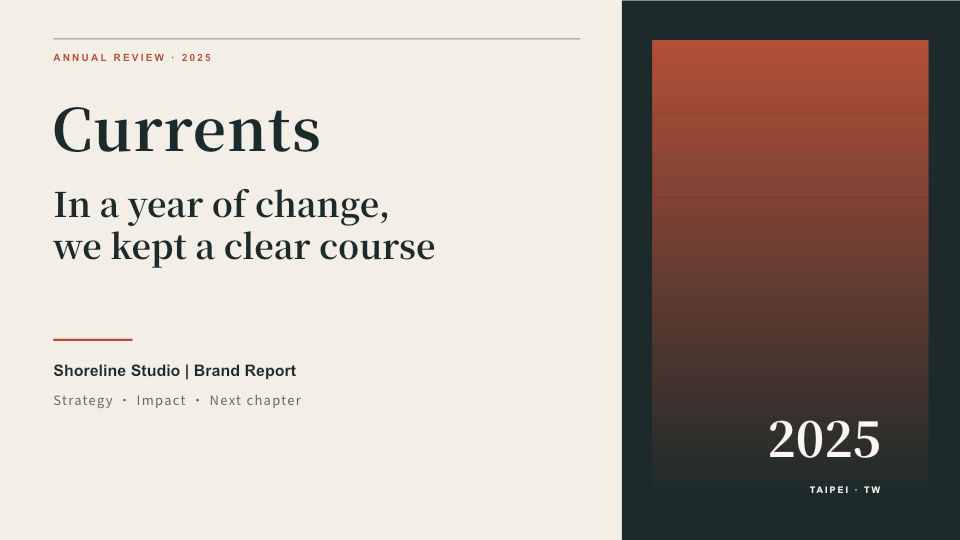 Brand & annual report
 Interior portfolio
 Customer success story (front page and clippings)