
Slide images or scanned PDF to editable PowerPoint
A deck that is only pictures is common: screenshots a colleague sent, photos taken in a meeting, a scanned handout, a PDF someone exported as images. You want to change one number, and the whole slide is one picture.
This post compares one thing: can you edit the file you end up with, in PowerPoint? If your deck came from NotebookLM (Gemini Notebook), the step-by-step is on this page.
How we tested
On 17 November 2026 we made a five-page test deck. Everything in it is made up, and its text is in Traditional Chinese with English mixed in, which is the hard case for text recognition:
- A title page, Chinese and English
- A list: three Chinese lines numbered with Chinese numerals (the Chinese way of writing “1. 2. 3.”), and three bullets
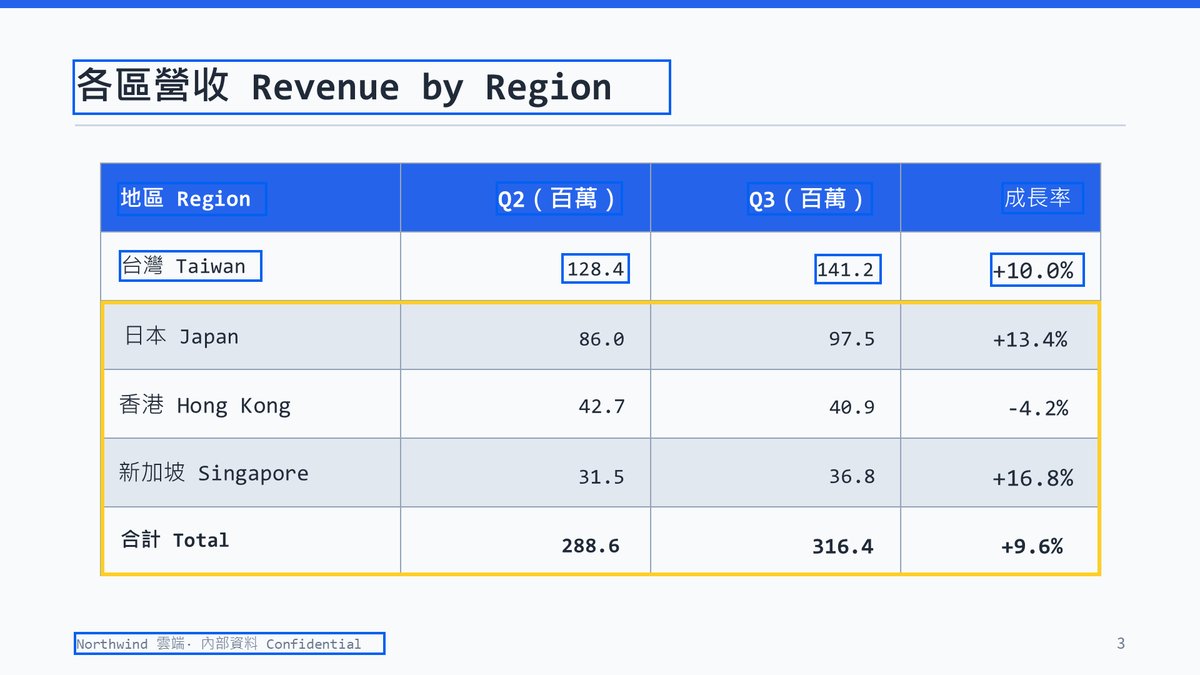
- A table of revenue by region, 6 rows by 4 columns
- A bar chart with axis numbers, a number on each bar, a legend and a callout
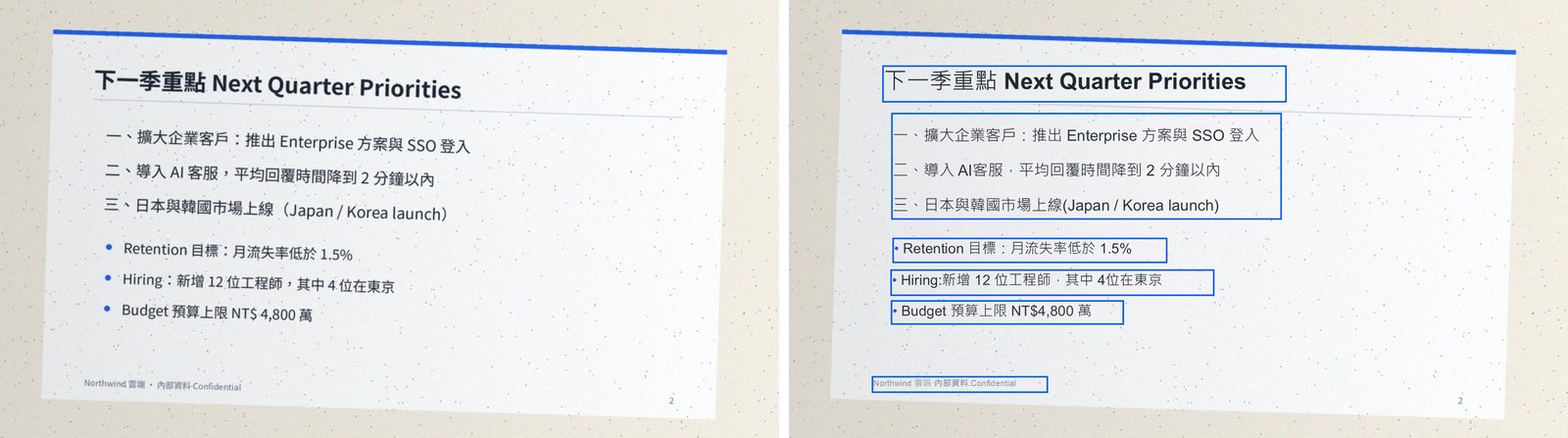
- Page 2 printed and scanned: tilted 1.8°, paper tint, specks, a little blur
We saved the five pages as PNG pictures, and as one PDF with a picture on each page. Then we tried three ways:
- Insert the pictures in PowerPoint: PowerPoint for Windows (Microsoft 365, version 16.0, build 20527), one picture a slide.
- The text recognition built into Windows: the engine in Windows 11 (25H2), which we called on each picture from a script.
- Dock: upload the PDF, run image to editable, download it as PPTX.
Every result was opened in the same PowerPoint for Windows and exported slide by slide. Chinese text was checked character by character: each line of the original against the most similar line of the result.
Results
| PowerPoint, pictures inserted | Windows text recognition | Dock | |
|---|---|---|---|
| Can you edit the text | No, each slide is one picture | You get a block of text to paste into a text box yourself | Each paragraph is a text box, 40 in all |
| Position and size | The picture, unchanged | Text only, no positions; pasted into PowerPoint it is one text box | Put back in place: most text boxes’ top-left corners within 10 pixels of the original (on a 1920-pixel-wide page), font sizes 87%–105% of the original |
| Chinese characters (234) | — | 0 with only the English recognizer; 224 with the Traditional Chinese one installed | 233 |
| Table | A picture | Read column by column, so you cannot tell which number belongs to which row | 4 of the 6 rows became a real table; the header and the first row are separate text boxes |
| Lists | A picture | The Chinese numerals 1, 2 and 3 read as a stray stroke, bullets as “·” | Bullets became real bullets; the first line’s numeral 1 stayed in the background (see below) |
| Numbers on the chart | A picture | Read 11 of 12 | 2 of 12 became text boxes; the rest stayed in the background |
| The original picture | Unchanged | Unchanged, the text still on it | Kept as the background, with the converted text cleaned off it |
| Tells you what did not convert | — | No | Yes: 13 places of text left in the picture, for this deck |
| Time | 1.4 s for five pictures (inserted by script) | Under 1 s for all five pages, then you lay it out yourself | About 4 s to upload, 53 s to convert, 5 s to download |
Inserting the pictures in PowerPoint: still one picture a slide
Put a picture in PowerPoint and you have a picture. PowerPoint does not read the words on it, so the file opens and plays, but not one word can be changed.
Windows text recognition: fast, free, nothing uploaded, and it gives you text
The text recognition built into Windows runs on your own computer, uploads nothing, and took under a second for all five pages.
Two things to know. First, Chinese has to be installed separately. The Windows we used had only the English recognizer, and it read none of the 234 Chinese characters. With the Traditional Chinese recognizer installed (a Windows optional feature, followed by a restart), it read 224.
Second, what you get is a block of text, not slides. Every Chinese character came back with a space after it; the Chinese numerals 1, 2 and 3 became a stray stroke, “AI” became “A” and a vertical stroke, the numeral 1 inside the title’s “next quarter” became a hyphen, and ten decimal points in the table were read as “·”. The table was read column by column, so putting it back together is up to you. Paste that text into PowerPoint and it is one text box over the original picture, whose words are still there.

It read more of the chart than Dock did: 11 of the chart’s 12 numbers, where Dock turned 2 into text boxes.
Dock: text boxes in place, the picture kept as the background
Dock reads the text on each page and puts it back in text boxes where it was, at about the same size. The original page stays as the background, with the converted text cleaned off it. We opened Dock’s file in PowerPoint, changed “2 minutes” on page 2 to “90 seconds”, saved, read it again, and the change was there.

The table has 6 rows. The bottom 4 became a real PowerPoint table; the header and the first row are text boxes, cell by cell, over the table in the background. The English and the numbers on this page were also set in a monospaced font.
On the scanned page Dock read all 77 Chinese characters correctly. The text boxes are level while the background stays tilted; the three numbered lines went into one text box, and the bullets became a “•” in the text.
What Dock does not do yet
- Fonts change to the theme font, and you can change them back in Dock. In PowerPoint on our Windows machine, the full-width Chinese comma was drawn like a centred dot.
- Up to 48 MB and 200 pages, on every plan. A longer file converts its first pages and keeps them. One file per conversion; to turn several pictures into one deck, put them in one PDF first.
- Text that did not convert stays in the background picture. You can see it but not edit it, and the result says how many places there are. This deck had 13, most of them numbers on the chart.
- In a Chinese list numbered with Chinese numerals, the first line’s numeral 1 stays in the background, outside the text box, and is not counted among the places that did not convert. It is a known issue.
- You sign up before you upload, and the deck is saved in your Dock. The free plan exports 3 times a month.
What we did not test
- Google Drive opening a PDF with Google Docs, which runs text recognition. It needs a Google sign-in, and we did not use one.
- PowerPoint opening the PDF directly, and Word converting the PDF to a document. Driven from a script, neither finished within ten minutes, so we have no result for them.
- Windows features built on the recognizer, such as the Snipping Tool’s text actions: we called the recognition engine directly.
- Paid PDF converters, phone apps, and online services that need an account.
When to use which
| Your situation | Better fit |
|---|---|
| You only need the pictures in a deck to present, no text changes | PowerPoint, insert the pictures |
| You only need a paragraph or a few numbers to paste somewhere else | Windows text recognition |
| The file must not leave this computer | Windows text recognition |
| You need a PowerPoint with the text in place, ready to edit | Dock |
| There are tables or lists whose structure you want to keep | Dock |
| You want to know which text did not convert, so you can fill it in | Dock |
If what you need is the text, the recognition built into Windows is fast and uploads nothing. If you need a deck you can keep editing, Dock puts the text back where it was and tells you what is left.
Frequently asked questions
Can I turn slide pictures into an editable PowerPoint?
Yes. Put the pictures in one PDF, upload it to Dock's image to editable, and download a PPTX. Each paragraph becomes a text box in place, and the original picture stays as the background with the converted text cleaned off it.
How many pages can Dock convert at once?
Up to 200 pages of a file on every plan, and up to 48 MB, one file per conversion. A longer file converts its first pages and keeps them.
What happens to text Dock can't convert?
It stays in the background picture, where you can see it but not edit it. The result says how many places are left; our five-page test deck had 13.
Can I convert slide pictures without uploading them?
The text recognition built into Windows runs on your computer and uploads nothing, but it gives you a block of text without positions. Dock needs the file uploaded.
These results come from our test on 17 November 2026: Windows 11 25H2 (10.0.26200), PowerPoint for Windows 16.0 build 20527 (Microsoft 365), and Dock as of that day. Either may change with updates.