
PDF to PowerPoint garbled text? How to fix it
The short answer: do one test before anything else. Open the PDF and copy a line of text into Notepad. If it pastes as gibberish, the converter is getting gibberish too, and you need an image version of the PDF. If you can’t select the text, it’s a scan. If it pastes cleanly, the problem is fonts or spacing, and you can fix those on the slides.
We took one five-page sample PDF, made four versions of it, ran each through Dock’s PDF to PowerPoint, and read the text back out of each PowerPoint file. We checked the results in Dock, not in PowerPoint.
- It pastes correctly: you have a text PDF. Fix gaps and fonts on the slides (sections 1 and 4).
- There’s nothing to select: you have a scan. Check what text recognition read (section 2).
- It pastes as gibberish: the PDF’s font encoding is broken. Convert an image version (section 3).
1. Text PDF: the text arrives, with some gaps
This is the normal case. All five pages were read from the PDF’s own text, every character came across, and the fonts and sizes stayed. A few things still need your eye:
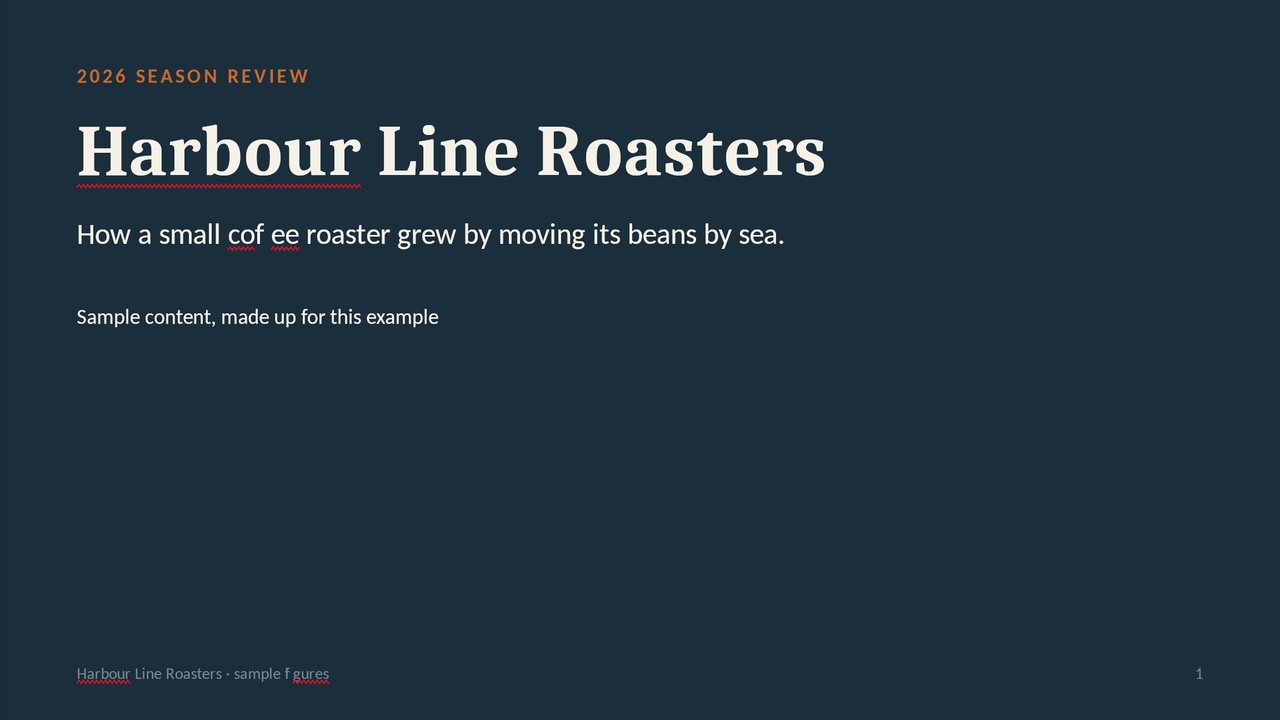
- Gaps inside words. “coffee” came out as “coff ee”, “figures” as “fi gures”, and the letter-spaced heading “THE SEASON” as “TH E SE ASON”. On the slide, “coffee” draws as “cof ee” and “figures” as “f gures”. The PDF’s own text is correct, so this comes from the conversion.
- Lines that break in the middle of a word. On our slide 3, “harbour” split across two lines.
Both are real text, so click in and retype the word.
2. Scan: text recognition reads the picture
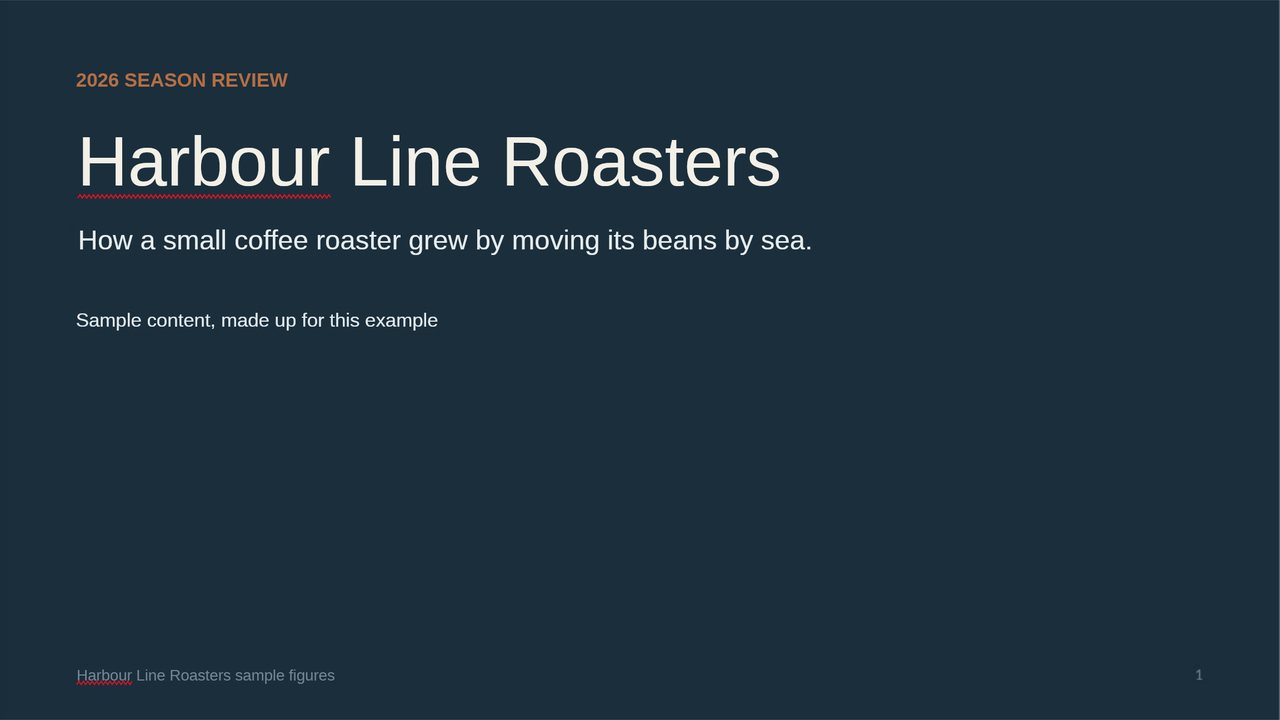
A scan has no text inside it, only a picture of each page. We saved all five pages as images in a new PDF, and Dock read them with text recognition (OCR). It got every word on those pages right, and the mistakes were small:
- One bullet was read as a full stop.
- The page numbers and two numbers in the table stayed in the picture behind the text. Dock’s report counted 8 spots left in the picture, mostly these.
- The table stayed a picture with loose text boxes on top, and “Beans moved by sea” wrapped into the row below.
- Every word came out in one font, Liberation Sans. A scan has no font names to read, so the original fonts are gone.
- Shapes and pictures stayed in the page image. Only text became editable.
Chinese and Japanese worked too. On a two-page test scan in those languages, every character on the page was right. One bullet was read as “●”.
3. Broken font encoding: the page looks fine, the text is gibberish
This one catches people out. A PDF can draw perfect letters and still not know what they are: each letter is stored as a shape with a code, and a separate table says which code means which letter. Without that table, the codes are all a program has.
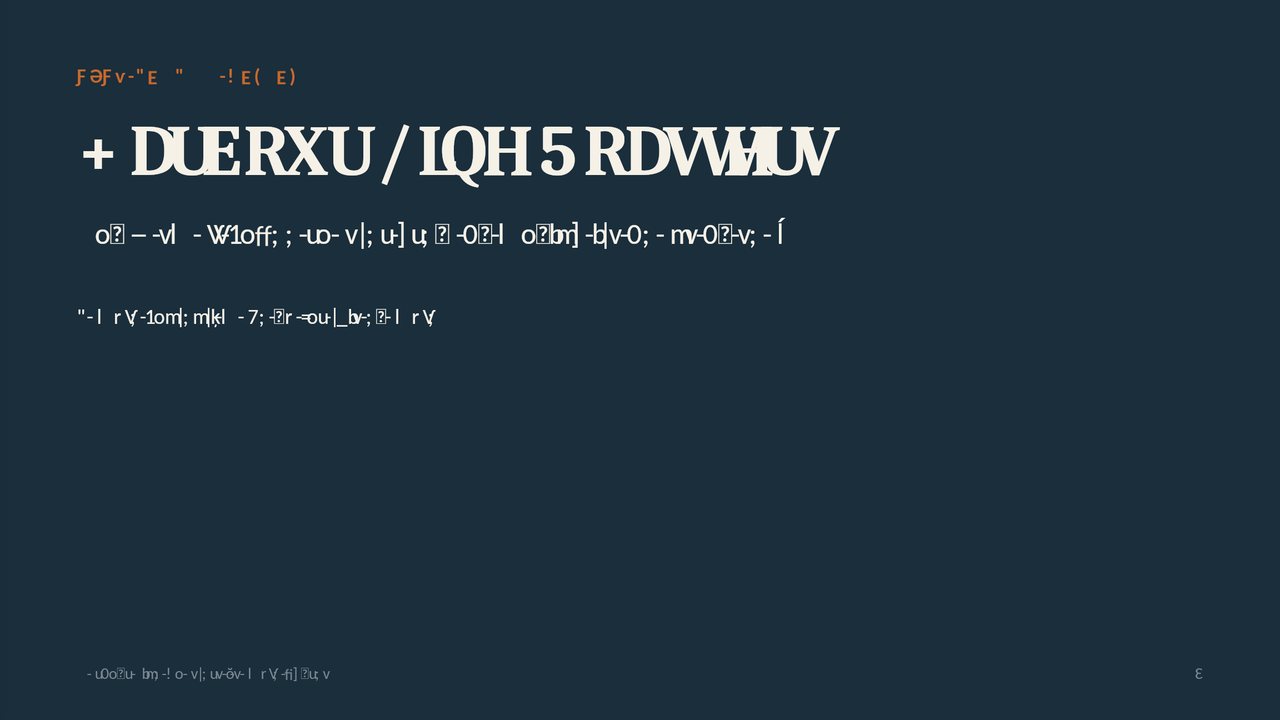
To see it happen, we removed that table from our sample. The PDF looked exactly the same as before, pixel for pixel. But copying “Three things changed this year” gave “7KUHHWKLQJVFKDQJHGWKLV\HDU”, and the converted slide came out as the same kind of gibberish, as in the picture at the top of this post. The colours and sizes are right; the letters are not.
Two warnings from this test:
- Don’t expect a warning. Dock’s report counted 98% of the text as carried, because by its count it was. Look at the slides themselves.
- Don’t try to repair it by hand. Every character came out in its own text box, more than 750 of them across five slides.
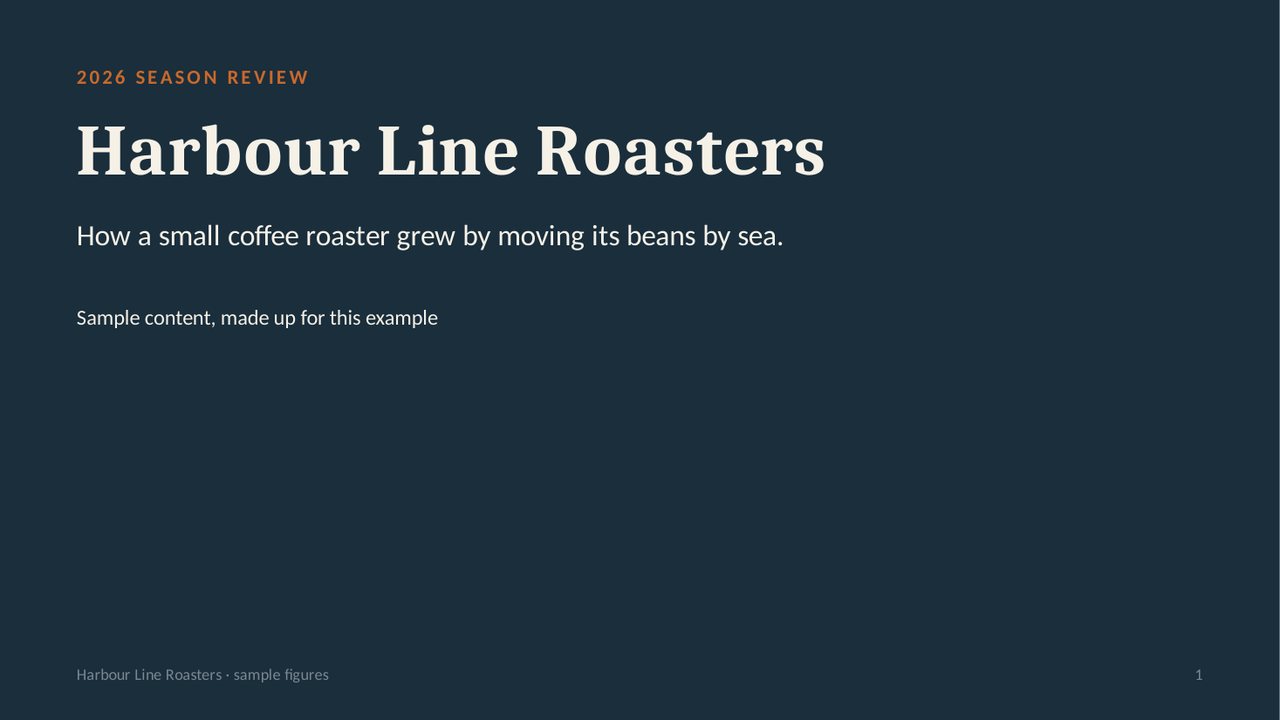
The fix: turn the pages into images, so that the letters are read from how they look. Save each page as an image and put them in a new PDF, then convert that. We did this at 110 dpi, and the slide read correctly:
You trade the fonts and objects for correct words: everything in section 2 applies.
4. Fonts: the name carries over, the font doesn’t
From a text PDF, the slides name the fonts the PDF uses, here Caladea and Carlito. The PowerPoint file doesn’t embed them, so a computer without those fonts draws the text in another one, and lines can wrap in new places. That is font substitution, and it’s why a slide can look right in one place and wrong in another.
A PDF that doesn’t embed its fonts at all behaves the same way. Our test named Helvetica and Times, and all the text came across, with those names on the slides: Times became Times New Roman. Three separate lines in that PDF did become one paragraph, so check the line breaks.
A Chinese and Japanese test PDF exported from Chromium kept every character, but the font name didn’t carry, and a single line could split into several text boxes.
To fix fonts, use Replace Fonts before you download: pick a font the other computer has. On the scan version we switched Liberation Sans to Arial, and all 34 text boxes in the download named Arial. The fonts guide shows the steps and the three places Replace Fonts leaves alone.
Frequently asked questions
Why does the PDF look fine if the text is broken?
A PDF reader only has to draw the letter shapes. Converting needs to know which letters they are, and that comes from a separate table inside the PDF.
Can I make Dock use text recognition on a text PDF?
Not with a setting. Dock reads a PDF's own text when it has some, which is why the image version is the way to force it.
Does the PowerPoint file include the fonts?
No. It names them, so whoever opens it needs those fonts or gets a substitute.