
Keynote to PPTX: the fonts changed. What to do

The short answer: the fonts change because your Keynote deck uses fonts that Windows doesn’t have. Before you send the file, switch them to a font both computers have. Below, we do it on a real deck, step by step.
1. Why the fonts change
Keynote decks often use fonts that come with macOS, such as Helvetica Neue or PingFang. When you export to PPTX, the file still names those fonts, but PowerPoint on Windows can’t find them and draws the text in another font. The letters have different widths, so lines wrap in new places.
2. The example deck
We made a five-slide deck in Keynote 15.3 on the Basic White theme. Its theme font is Helvetica Neue. We uploaded the .key file to Dock and downloaded a PowerPoint without changing anything. That PowerPoint names Helvetica Neue on every text box and embeds no font, so a Windows PC without Helvetica Neue draws the text in another font.

Download the Keynote original (.key). The result is shown as screenshots on the converter page.
3. See which fonts you can replace
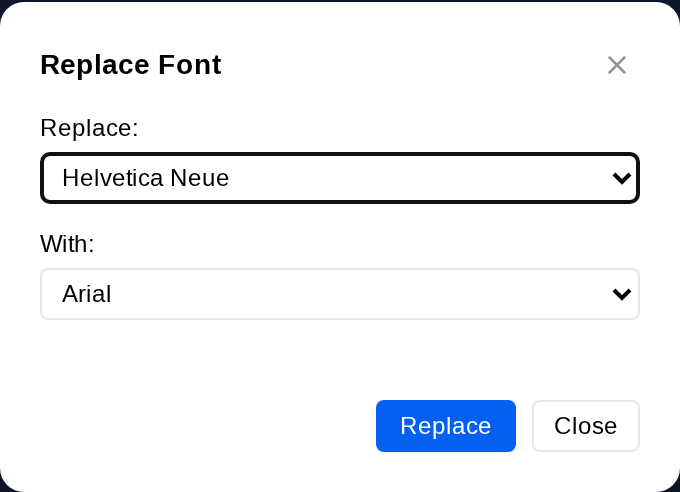
In Dock, open the deck and choose Home ▸ Find ▾ ▸ Replace Fonts…. The Replace list holds the fonts Replace Fonts can change. In our deck that is only Helvetica Neue.
4. Switch to a font both sides have
Pick a font Windows has under With, such as Arial, and press Replace. Dock switches the font in one step wherever text names it: on slides, layouts, masters, notes, tables and SmartArt, in Latin and Asian-language text alike. Text that follows the theme’s Latin font is switched too. Three places keep the old font:
- A chart’s default text, which the axis labels, legend and data labels use. Only text typed into the chart, such as its title, changes.
- Asian-language text that takes its font from the theme. It still follows the theme, and the theme keeps its font.
- Bullet characters that name a font of their own.
We checked these on a second test deck with Chinese text and a chart in Dock: the title’s Helvetica Neue and PingFang TC became Arial and Microsoft JhengHei, while the chart’s axis labels and the Chinese text that followed the theme kept Helvetica Neue and PingFang TC.
On the example deck, we downloaded the PowerPoint again. Every piece of text in it now names Arial. Two things to know:
- The theme still lists Helvetica Neue, the same as PowerPoint’s own Replace Fonts does. The text no longer follows the theme font, so it doesn’t matter for this deck.
- Arial’s letters are not the same width as Helvetica Neue’s, so look through the slides for lines that wrap in new places.
5. Download the PPTX, keep a Keynote copy
When it looks right, download a PowerPoint file for your colleague. If you keep working in Keynote, download a .key file too.
Dock’s server builds the PowerPoint download, so the font settings in Dock’s Download menu don’t apply to it. Replace Fonts is the step that changes the fonts in that file.
Frequently asked questions
Can I do this without a Mac?
Yes. Dock opens .key files in the browser, on Windows or Linux too.
Can't Keynote export a PPTX on its own?
It can. The exported file still names the Mac fonts, so you find out which ones are missing only when it opens on the other computer.