
Open a Keynote file on Windows, no Mac needed
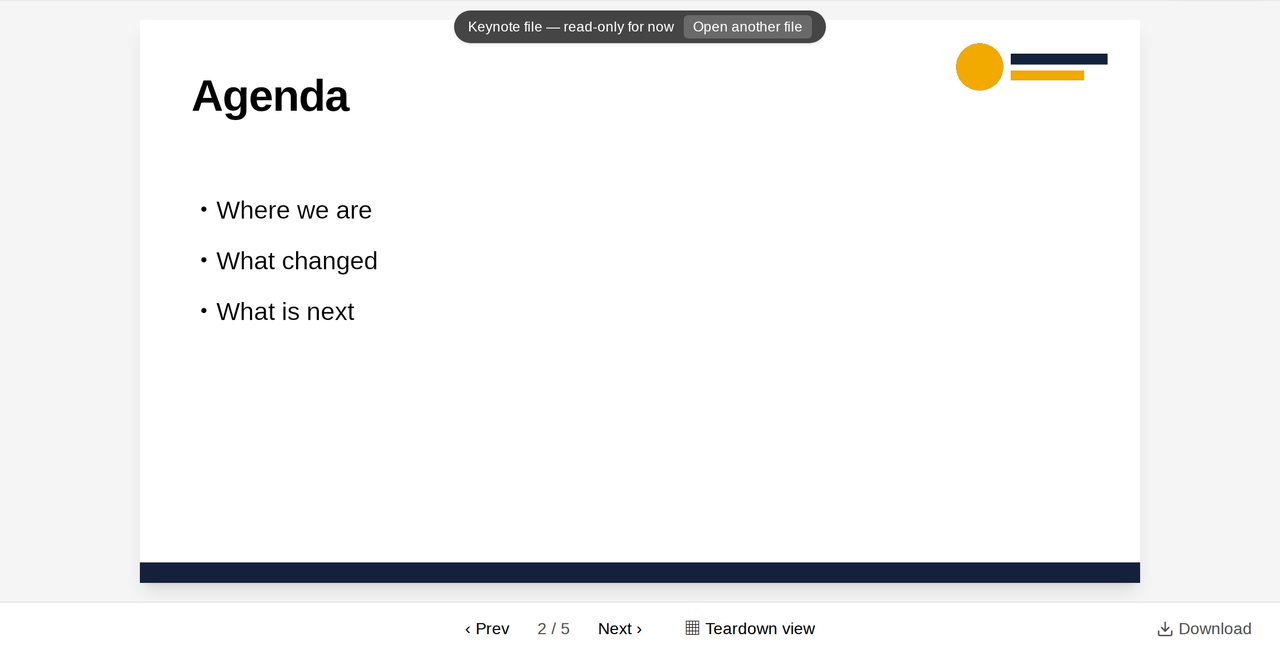
The short answer: you can read a .key file on a Windows PC with nothing but a browser. Open it on Dock’s home page: no Mac, no Keynote and no account, and the file stays on your computer. To change it, sign up, upload it to Dock, and download a .key again when you’re done.
This is about opening the file you were sent. If someone needs a PowerPoint file, that’s a different job: see Keynote to PowerPoint.
We tested these steps on a real five-slide Keynote file, which you can download and try. We ran them in Chromium on Linux, not on a Windows PC. Nothing here is installed, so they should be the same on Windows, but we haven’t watched them there.
1. Read it without signing up
- Go to the Dock home page and choose the Start from a presentation tab.
- Drop your .key file in, or pick it from your computer.
- Use Prev and Next to go through the slides.
The picture at the top of this post is what you see. The label on the slide says what you get here: Keynote file — read-only for now. You can look, but you can’t type. The file isn’t uploaded: we watched the browser’s network traffic while it opened, and none of the file left the page. Download here asks you to sign up first.
If your computer doesn’t have the deck’s fonts, the text is drawn in a similar one, so a line may wrap differently from how it looks on a Mac.
2. Edit it in Dock
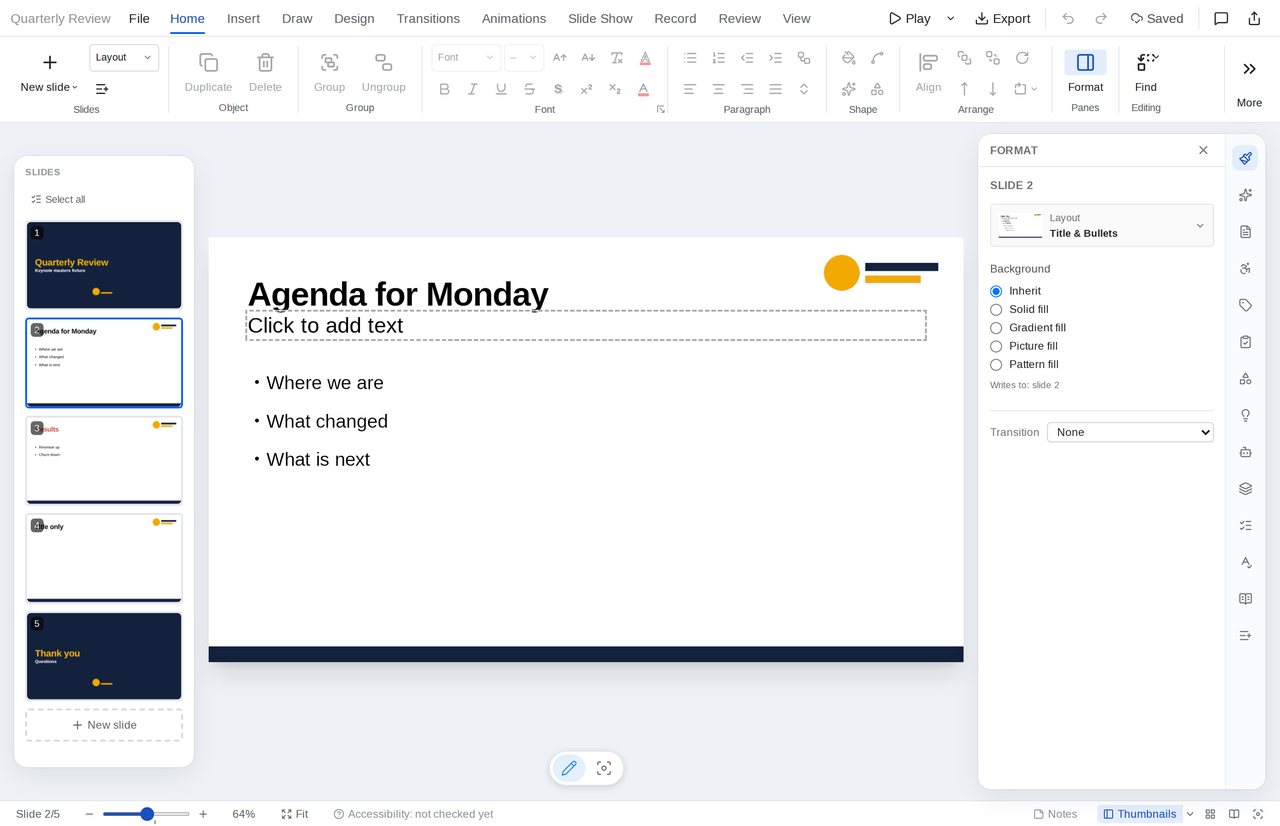
Sign up free, then upload the .key file to Dock. Our file came in with all five slides, and nothing was reported as dropped. You can now click into text and change it.
3. Download a .key again
Choose File ▸ Download ▸ Keynote. A text edit like this one is written into the original file, not into a new one.
We checked this on our test file. After changing that one title, we compared the download with the original: a .key file is a bundle of 65 smaller files, and only the one that holds the slides had changed. Then we put the download back into Dock, and slide 2 read “Agenda for Monday” with all five slides there.
We didn’t open that download in Keynote itself, because this test had no Mac. So before you send an edited file back to a Keynote user, ask them to open it and look.
4. Open it, or convert it?
- You only need to read it: use the home page. There’s no account, and the file stays on your computer.
- You need to change it and give it back as Keynote: upload it to Dock and download a .key.
- Someone needs PowerPoint: download PowerPoint from the same Download menu. Keynote to PowerPoint shows what that file looks like, and the fonts guide covers fonts that change on the way.
Frequently asked questions
Do I need a Mac or Keynote?
No. Dock opens the .key file itself, in the browser.
Is my file uploaded when I only read it?
No. On the home page it stays in your browser. It goes to Dock only when you sign up and upload it.
Can I edit without an account?
No. The home page is read-only for Keynote files. Editing needs a free account.